Customization
myDBR provides extensive options for customizing the application's appearance and behavior to align with your brand or specific user requirements.
Main Screen Customization
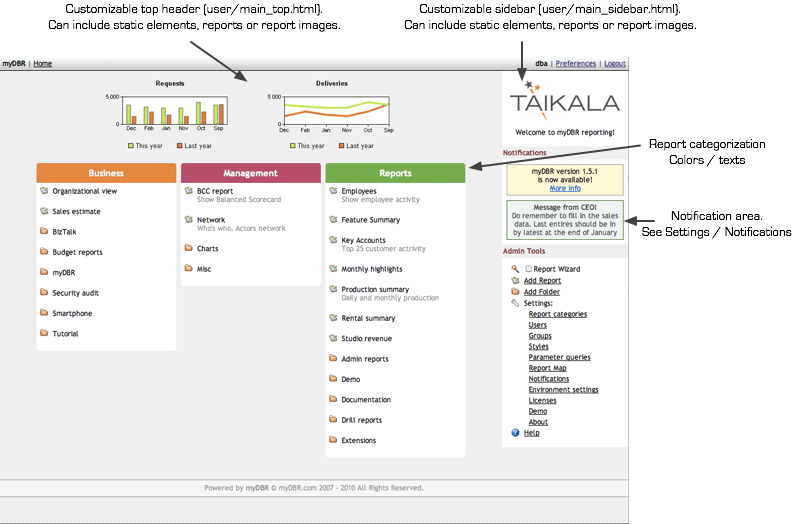
The Main Screen is the primary interface for users to access reports. You can customize several key areas:
-
 Header / Dashboard
Fully customizable via theuser/main_top.htmlfile. This area can display dynamic content, including full reports or embedded charts. -
Sidebar
Typically used for company logos or general navigation, the sidebar is fully customizable. -
Notifications
Displays short-term announcements to users. These can be managed directly within the application without modifying any files. -
Report Categorization
In addition to standard folder structures, you can categorize reports and folders within a single view and assign custom colors for better visual organization.
Report Customization
To customize report headers and footers, modify the files located in the user/ directory. Key files include:
-
interface/themes
Contains CSS stylesheets that define UI elements throughout the application. -
user/reportheader.html
The default report header. This can be used for logos or text and can be overridden in OEM versions to display organization-specific content. -
user/defaults.php
Used to override myDBR's default configuration settings (originally defined inmydbr/defaults.php). -
user/userstyle.css
A custom stylesheet for overriding default styles or defining new ones used across the application. -
user/extension_init.php
Used for initializing user-specific settings for extensions.
Customizing the Header and Dashboard
The main dashboard header can display full reports or individual elements like charts, HTML, and JavaScript. This content is managed via the user/main_top.html file.
To include a full report in the dashboard, use the embed_url JavaScript function, passing the report URL as a parameter. Append &embed=2 to the URL to embed only the report content.
<script>
  embed_url("http://myserver.com/mydbr/report.php?r=59&m=45&h=84410e9a181a9f93ca85b1a1811351c415f1be85&embed=3");
</script>
To include charts or images, use the <img> tag and the getchart parameter to specify which image to display. For example, getchart=1 displays the first image from the report.
<img src="report.php?r=496&u1=1&m=60&h=83e484f935d7b1d02d1fa07ca1b280a7ef9e1062&getchart=1" style="width:320px;height:150px;" alt="Dashboard Chart" />
For multilingual dashboards, use the localization feature. Insert #{DASHBOARD} into user/main_top.html and define the localized content within myDBR.
Customizing PDF Output
You can include a custom logo in PDF exports (generated via wkhtmltopdf) by adding the following configuration to user/defaults.php:
$mydbr_defaults['export']['pdf']['logo'] = 'filename.jpg'; // Path relative to user/images
$mydbr_defaults['export']['pdf']['logo_width'] = 100; // Logo width in pixels
Using CSS for Customization
myDBR supports several methods for applying custom CSS to your reports:
- Creating a custom theme: Defines global UI elements.
- Modifying user/userstyle.css: Shared styles for multiple reports.
- Embedded CSS: Adding CSS directly within a specific report.
Creating a Custom Theme
Themes define the global look and feel for all myDBR layouts. To create a new theme, add a CSS file to the interface/themes directory. You can use existing themes as a template for your own.
Shared Styles in userstyle.css
The user/userstyle.css file is used for styles shared across multiple reports, such as result set, row, and column formatting.
Tip: Each report is wrapped in a
DIVwith a unique class (e.g.,report_519) and a globalcontentclass. This allows you to target styles to a specific report withinuserstyle.css.
OEM Customization
OEM customization allows you to white-label myDBR by replacing default logos and text with your own branding.
You can configure the application logo, name, and the visibility of the header and footer in the Environment settings. With an OEM license, many UI elements include additional oem_* CSS classes to facilitate precise styling.
Customizing the Login Screen
Custom content can be added to the login screens by modifying user/oem/login_bg.html and user/oem/google_login_bg.html. The content of these files is inserted into a container with the oem_login_bg class.
Customizing Favicons
To customize application favicons, override the default icon array in user/defaults.php:
$mydbr_defaults['oem']['favicons']['icons'] = [
  ['type' => 'image/png', 'rel' => 'apple-touch-icon', 'href' => 'oem-touch-icon-iphone.png'],
  ['type' => 'image/png', 'rel' => 'apple-touch-icon', 'href' => 'oem-touch-icon-ipad.png', 'sizes' => '152x152'],
  ['type' => 'image/png', 'rel' => 'apple-touch-icon', 'href' => 'oem-touch-icon-ipad-retina.png', 'sizes' => '167x167'],
  ['type' => 'image/png', 'rel' => 'apple-touch-icon', 'href' => 'oem-touch-icon-iphone-retina.png', 'sizes' => '180x180'],
  ['type' => 'image/x-icon', 'rel' => 'shortcut icon', 'href' => 'oem-favicon.ico'],
];
This configuration generates the following headers:
<link rel="apple-touch-icon" type="image/png" href="oem-touch-icon-iphone.png">
<link rel="apple-touch-icon" type="image/png" href="oem-touch-icon-ipad.png" sizes="152x152">
<link rel="apple-touch-icon" type="image/png" href="oem-touch-icon-ipad-retina.png" sizes="167x167">
<link rel="apple-touch-icon" type="image/png" href="oem-touch-icon-iphone-retina.png" sizes="180x180">
<link rel="shortcut icon" type="image/x-icon" href="oem-favicon.ico">
Using a Custom Main Screen
To redirect users to a specific report instead of the standard Main Screen, define a custom dispatcher procedure in $mydbr_defaults['mainview']['alternate_mainview_dispatcher_proc']. By default, this is set to sp_mydbr_mainview_proc_get. This procedure receives two parameters, the username (inLogin) and the authentication method (inAuth), and should return the ID of the target report.
An example procedure that redirects all users to a specific report (ID 1234) would be:
CREATE PROCEDURE sp_mydbr_mainview_proc_get(
inLogin varchar(30),
inAuth int
)
BEGIN
  SELECT 1234;
END
For more complex requirements, you can access myDBR's internal tables (mydbr_userlogin, mydbr_groupsusers, and mydbr_groups) within the procedure to implement logic based on user identity or group membership.
To enable the custom Main Screen, configure the following settings in user/defaults.php:
$mydbr_defaults['mainview']['use_alternate'] = true;
Enables the custom Main Screen.$mydbr_defaults['mainview']['cache_alternate'] = false;
Disable this setting during development to immediately see your changes. Once your logic is finalized, enable it for optimal performance.
Displaying a Custom Logo by User Organization
When using Single-Sign-On (SSO) or multiple organizations, you can display a unique logo based on the user's organization. This logic is implemented by overriding the Reportheader_image::get_image() function in user/reportheader_image.php.
To enable this feature, configure the following in user/defaults.php:
$mydbr_defaults['reportheader_logo']['enabled'] = false;
Instructs myDBR to use the custom logo routine.$mydbr_defaults['reportheader_logo']['param'] = 'in_SSO_OrganizationID';
Specifies the parameter passed to theget_image()function. Customize the function's logic to return the appropriate logo for each organization.