General
Managing Folders
Folder Structure
The folder structure defines how reports are organized and presented to users. A well-planned, logical folder structure helps end-users find relevant information quickly. Use folders to categorize reports based on their purpose, department, or functionality.
Folder Permissions
Folder permissions control which users or groups can view and access a specific folder.
To maintain a clean user interface, consider placing administrative reports (e.g., statistics, maintenance) in a dedicated folder accessible only to administrators.
Additionally, linked reports, which are often dependent on specific parameters from a parent report and not intended for direct use, can be placed in hidden folders to prevent them from appearing in the standard report list.
Adding and Deleting Reports
When adding a new report, myDBR identifies stored procedures that include the configured report prefix (defined in Environment settings) and have not yet been registered in the report structure. You can then select the desired procedure to add it. Alternatively, you can use the SQL Editor to create a new report procedure directly.
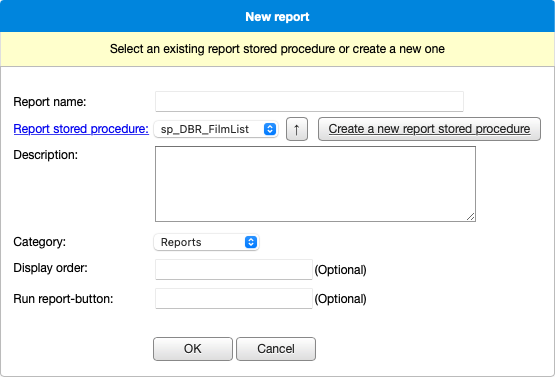
After adding a report, you can configure its parameters and access privileges.
Moving Reports and Folders
To move a report or folder, select Move report in the edit view, navigate to the target folder, and click Move folder/report here. All access privileges and parameter settings remain intact after the move. Alternatively, you can use drag-and-drop within the folder structure to reorganize items.
Configuring Report Parameters
The Report parameters section defines how parameters are presented to the user during report execution.
General Settings
- Parameter
The name of the parameter as defined in the database. - User input
The input method for the parameter (e.g., text field, popup, radio button, or autocomplete). - Default value
The initial value for the parameter. While myDBR remembers user choices for subsequent runs, this value is used for the first execution. - Name
The display name visible to the user. If left empty, the database parameter name is used. - Suffix
Text displayed immediately after the parameter input field. - Options
Specific configuration options for different parameter types.
Parameter Options
- Optional
Allows the user to leave the parameter empty. - Do not remember user's choice
Prevents myDBR from caching the user's input for future sessions. - Do not show to the user
Hides the parameter from the input screen. - Allow unlimited HTML
Disables automatic sanitization of HTML and JavaScript in user input. - Keep the next parameter in the same row
Displays the following parameter on the same line. If two date parameters are placed together, a date range selection popup is enabled. - Title
Displays a header before the parameter. - Add a class
Applies a custom CSS class to the parameter's container. - Placeholder
Displays hint text when the input field is empty. - Width
Specifies the width of the input field. - Rows
Converts the input into a textarea with a specified number of rows. - No selected radio button
Ensures no default value is pre-selected for radio buttons.
For more details on available input types, see User Parameters.
Report Privileges
The Report privileges section manages access rights for each report. Access can be granted directly to individual users or inherited from user groups.