Editor Basics
The myDBR SQL Editor is a built-in editor for accessing reports and other database objects. You can use it to create reports, query or update data, or run any SQL command against the selected database.
When the SQL Editor is initialized, the following options are available:
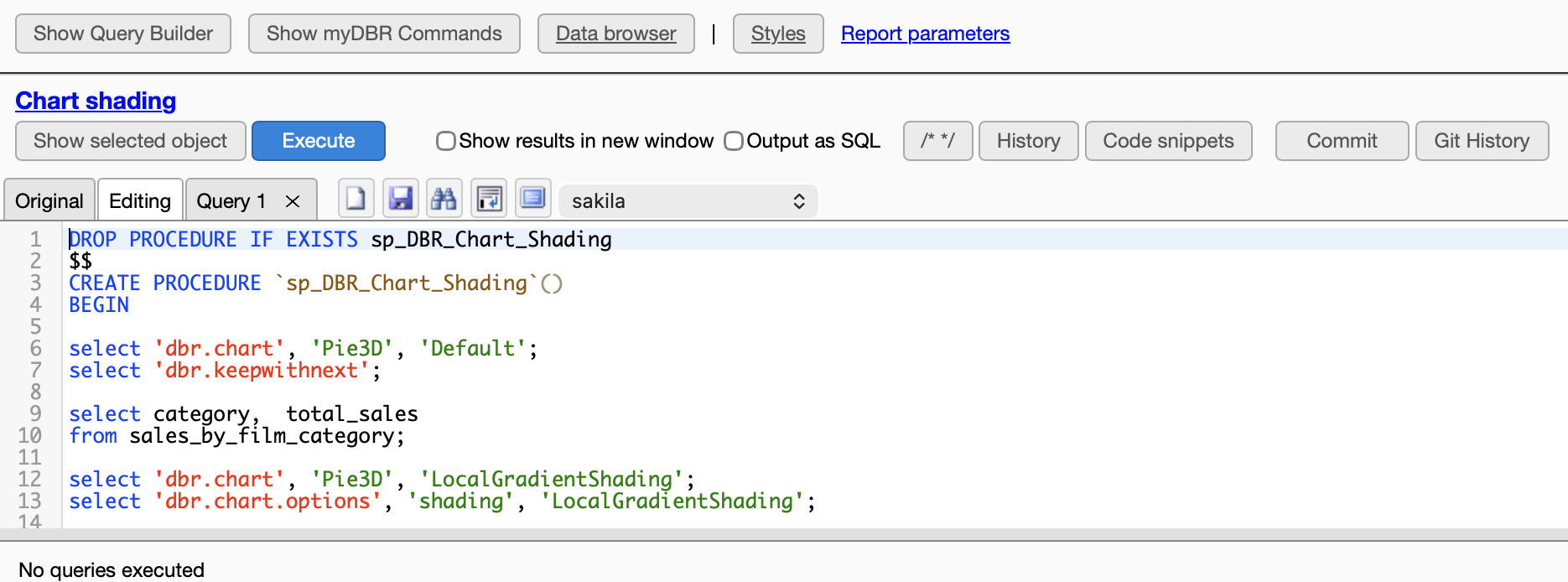
-
Show Query Builder
Browse the database structure and search for specific objects (routines, tables, etc.). -
Show myDBR Commands
Access myDBR commands, configuration options, and integrated help. -
Data Browser
Access the myDBR Data Browser for direct data manipulation. -
Styles
Access and manage report styles. -
Report parameters
Open the parameter configuration screen for the current report. -
Show selected object
View the definition of a selected database object (table, procedure, or function) or myDBR command in a new tab. -
Execute
Execute the selected text or the entire content of the editor if no selection is made. Multiple queries are separated by '$$' in MySQL or 'GO' in other databases. -
Show results in a new window
Display query results in a separate browser window instead of the default pane below the editor. -
Output as SQL
Format query results as SQLINSERTstatements in a new window. This is useful for providing reproducible data sets to myDBR support without sharing the full database structure. -
/* */
Comment out the selected block of code. -
History
View a history of executed commands and procedures during the current session. -
Code snippets
Open the snippets palette for built-in and user-defined code blocks. If text is selected, this button creates a new snippet from that selection. -
Commit Commit to Git repository
-
Git History Show all commits from Git
-
 Database Processes
Monitor active database processes and terminate non-responsive queries. -
 Keyboard shortcuts
Display available keyboard shortcuts for the editor. -
 Preferences
Configure editor settings, including theme, indentation, keymaps, and autocomplete databases. -
Tabs: Original, Editing, Query 1
Manage multiple code buffers. The Original tab retains the code as it was before editing began, while additional tabs can be used for helper queries.
Launching the Editor
The SQL Editor can be accessed from several locations:
-
For existing reports:
- Select Report code from the main screen.
- Select Edit report code from the Edit Report screen.
- Click the edit icon (
 ).
).
-
For new reports:
- Select New report from the main screen. You will be prompted to enter the name of the new stored procedure.