Creating Editable Reports

myDBR allows you to edit your data directly within the application interface. It supports several methods for data manipulation:
- Inserting new records into the database.
- Full entity editing, where multiple fields are updated in a single transaction. This is ideal for cases requiring simultaneous updates to several columns.
- In-place editing for modifying individual values. This is most effective for rapid updates to existing data.
- Deleting records from the database.
Editing is implemented by linking an auxiliary "editing report" to the original report. Access rights to the editing report determine whether a user sees the data as editable or as a standard read-only report.
Sample Editing Functionality
A common scenario involves displaying a data list with the option to add new records or modify existing ones.
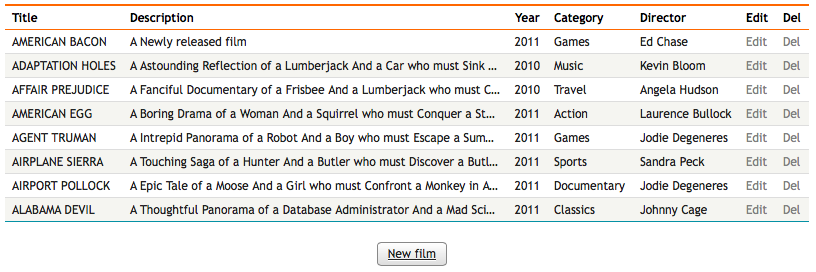
In this example, we will:
- Enable the creation of new records.
- Allow direct editing of the Description field (text).
- Allow direct editing of the Category field (using a select list populated from another table).
- Enable full-row editing via a linked report attached to an Edit column.
- Enable record deletion via a linked report attached to a Del column.
The initial list is generated with the following query:
select 'dbr.hidecolumns', 'film_id';

select
  f.title as 'Title',
  f.description as 'Description',
  f.release_year as 'Year',
  c.name as 'Category',
  d.Name as 'Director',
  'Edit',
  'Del',
  f.film_id,
  f.category_id,
  f.director_id
from mydata.film f
  join mydata.category c on c.category_id = f.category_id
  join mydata.directors d on f.director_id = d.director_id
order by f.film_id;
Creating New Database Records
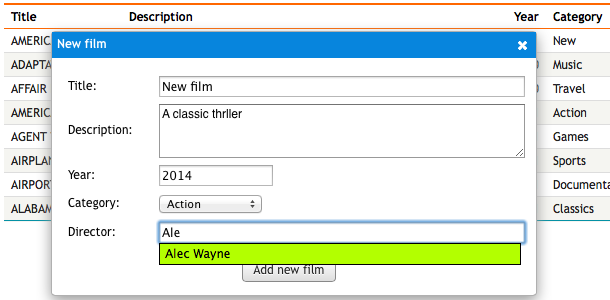
We will add a button below the list to open a dialog for new data entry. A linked report, registered via dbr.report, handles the database insertion and returns a refresh command to update the list.
select 'dbr.button', 'New film';
select 'dbr.report', 'sp_DBR_Film_new', 'newfilm[]';

select 'dummy result set for the button';
Key components:
dbr.button: Styles the report link as a button.sp_DBR_Film_new: The stored procedure that performs the action.newfilm[]: Directs the output of the linked report into a dynamicDIVwith the IDnewfilm. Parameters are requested in a popup dialog to maintain the user's context on the page.
Stored procedure for sp_DBR_Film_new:
create procedure sp_DBR_Film_new(
inTitle varchar(69),
inDescription text,
inRelease_year int,
inCategory tinyint,
inDirector_name varchar(80),
inDirector int
)
begin

insert into mydata.film ( title, description, release_year, category_id, director_id )
values (inTitle, inDescription, inRelease_year, inCategory, inDirector );

select 'dbr.refresh';

end
Since sp_DBR_Film_new is a standard report, you can enhance its parameters, for instance, by using a popup for category selection or an autocomplete field for the director's name.
The dbr.refresh command ensures the parent report updates automatically to show the newly added record.
Editing a Complete Row
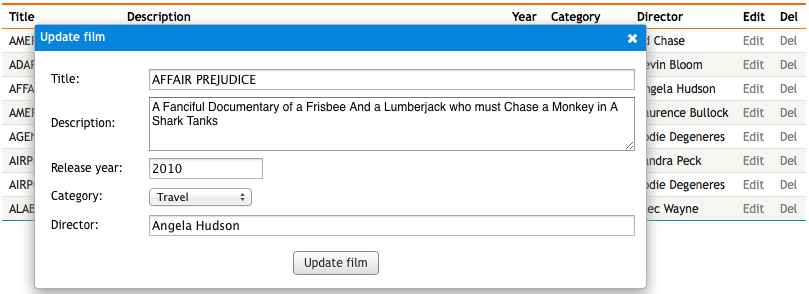
Full-row editing follows a similar pattern to record creation. The primary difference is that we pass the unique ID of the selected row to the update procedure.
First, attach the edit report to the Edit column using the dbr.report command:
select 'dbr.report', 'sp_DBR_Film_upd', '[Edit]', 'popup', 'inFilm_id=film_id',
  'inTitle<=Title', 'inDescription<=Description', 'inRelease_year<=Year', 'inCategory_id<=category_id',
  'inDirector<=Director', 'inDirector_id<=director_id';

select
  f.title as 'Title',
  f.description as 'Description',
  f.release_year as 'Year',
  c.name as 'Category',
  d.Name as 'Director',
  'Edit',
  'Del',
  f.film_id,
  f.category_id,
  f.director_id
from mydata.film f
  join mydata.category c on c.category_id = f.category_id
  join mydata.directors d on f.director_id = d.director_id
order by f.film_id;
The sp_DBR_Film_upd report is displayed in a popup. The row ID (film_id) is passed as a fixed value (=), while other fields are passed as editable parameters (<=) initialized with the current values.
The stored procedure for sp_DBR_Film_upd:
create procedure sp_DBR_Film_upd(
inFilm_id int,
inTitle varchar(80),
inDescription text,
inRelease_year int,
inCategory_id int,
inDirector varchar(80),
inDirector_id int
)
begin

update mydata.film
set title = inTitle, description = inDescription, release_year=inRelease_year, category_id=inCategory_id, director_id=inDirector_id
where film_id = inFilm_id;

select 'dbr.refresh';

end
Having both director name and id as a parameter is due to the fact that the dialog used autocomplete value to fetch the id when the user enters the director's name.
Enhancing Editing with JavaScript
You can add custom logic to editable reports using the callbefore option in dbr.report. This allows you to execute a JavaScript function before the linked report is triggered.
For example, we can implement a confirmed delete functionality that removes the row from the interface using AJAX without a full page refresh.
Stored procedure to delete the record:
create procedure sp_DBR_film_delete( in_film_id int )
begin

delete
from sakila.films
where film_id = in_film_id;

end
Updated main report with delete confirmation:
select 'dbr.javascript',
"
function confirmdel(obj)
{
return confirm('Delete film \''+$(obj).parent().children().eq(0).text()+'\'?');
}";

select 'dbr.report', 'sp_DBR_film_delete', '[Del]', 'scriptdiv[]', 'in_film_id=film_id', 'event=click', 'callbefore=confirmdel';
Explanation:
callbefore: Specifies the JavaScript function to execute before the link.confirmdel: Returnsfalseif the user cancels, preventing the report from running.$(obj).parent().children().eq(0).text(): Uses jQuery to retrieve the film title from the first column of the current row.scriptdiv[]: Receives the output of the delete report. Using[]creates the container dynamically.event=click: Makes the entire table cell clickable.
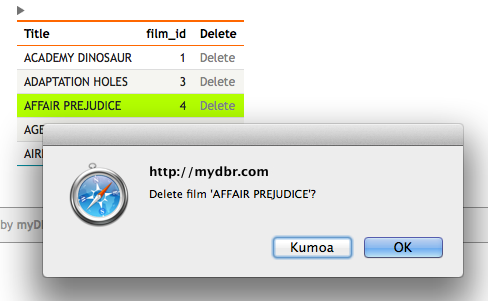
To further improve the user experience, the delete procedure can return JavaScript to remove the row from the report immediately:
create procedure sp_DBR_film_delete( in_film_id int )
begin

delete
from sakila.films
where film_id = in_film_id;

select 'dbr.javascript', "$(mydbr_selected_cell).parent().remove();";

end;
The mydbr_selected_cell variable is a predefined reference to the cell the user clicked.
In-place Editing
In-place editing allows users to modify selected values directly within the report table. You can specify which columns are editable and define the procedure to handle the updates.
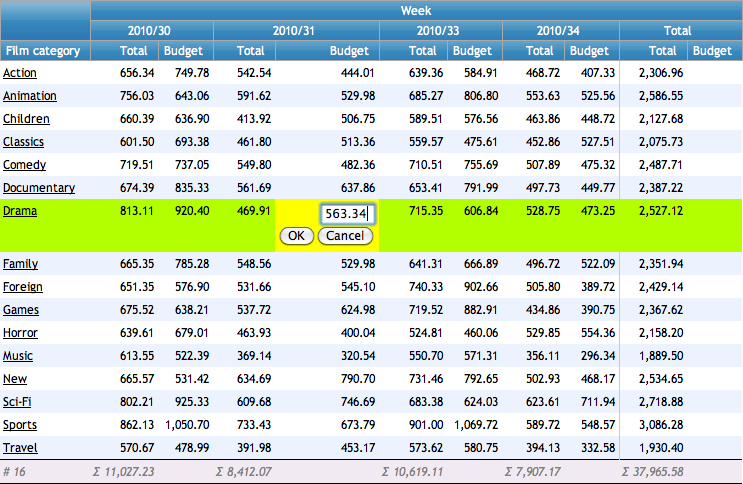
In the following example, we enable in-place editing for the Budget column in a crosstab report using the dbr.editable command.
create procedure sp_DBR_InPlaceEditing
begin

select 'dbr.editable', 'id', 'sp_DBR_update_crosstable', 'inCategory=cat', 'inWeek=Week';

select 'dbr.crosstab', 'Week';
select 'dbr.count', 'cat';
select 'dbr.sum', 'Total';
select 'dbr.hsum', 'Total';
select 'dbr.hidecolumns', 1;

select category as 'Film category[cat]',
       payment_week 'Week',
       amount as 'Total',
       budget as 'Budget',
       category_id as 'id'
from film_budget;

end
The handling procedure (sp_DBR_update_crosstable) receives the parameters specified in dbr.editable, plus the new value as the final parameter. The procedure can either accept the change or reject it by returning the original value.
The last parameter of the update procedure is automatically populated with the edited value. You can name this parameter as needed (inValue in the example below).
create procedure sp_DBR_update_crosstable(
inCategory int,
inWeek int,
inValue float
)
begin

if (inValue > 0) then
  /* Accept the update */
  update film_budget
  set budget = inValue
  where category_id=inCategory and payment_week=inWeek;
else
  /* Reject the update and return the original value */
  select budget
  from film_budget
  where category_id=inCategory and payment_week=inWeek;
end if;

end