Creating Your First Report
myDBR reports are database-native stored procedures that you can create using the built-in SQL Editor (or any SQL editor of your choice). For more details, refer to the myDBR SQL Editor.
To create a report, you will generate a stored procedure in the myDBR database. The report stored procedure carries a prefix ('sp_DBR') that helps myDBR distinguish report procedures from other procedures in the database. After creating the procedure, it can be linked to the myDBR application's report hierarchy using the 'New report' function. Once attached, the report is ready to execute.
After attaching the report to the myDBR structure, you can edit the stored procedure behind it or drop and recreate it. This flexibility is beneficial during the development of your reports.
In addition to normal SQL data queries, myDBR reports incorporate myDBR commands, which myDBR interprets when the report is executed.
First Report
For instance, let's create a simple report and walk through the necessary steps in using myDBR. In this example, the default setup is assumed, where the user has data in their own database (named 'mydb') while myDBR utilizes its own reporting database ('mydbr'). The examples draw inspiration from the MySQL sample database Sakila. If you wish to experiment with myDBR using the Sakila database, please follow the link and download it.
The initial report will list films from the 'film' table in the user database 'mydb'. Additional features will be incorporated into the report later.
We'll create a stored procedure named sp_DBR_FilmList to display the films in the database. 'sp_DBR' serves as the default prefix for report procedures, assisting myDBR when attaching the stored procedure as a report in the myDBR structure (making it easy to distinguish reports from other stored procedures in the database). In this example, we'll use the built-in SQL editor to create and store the report in the mydbr database.
1. Click on 'New report' in the Admin tools section on the main screen
If no unassigned stored procedures (procedures starting with 'sp_DBR' that are not used in a report) are found, myDBR will prompt for the procedure name to be created:

2. Enter the procedure name and click OK
myDBR will create a template report into which you will add your queries and logic.
If you want to browse the database structure or get help writing the SQL code, you can open the Query Builder by clicking the "Show Query Builder"-button. You can pick the database, table, and columns you wish to be included in the report. Please see more info on myDBR SQL Editor.
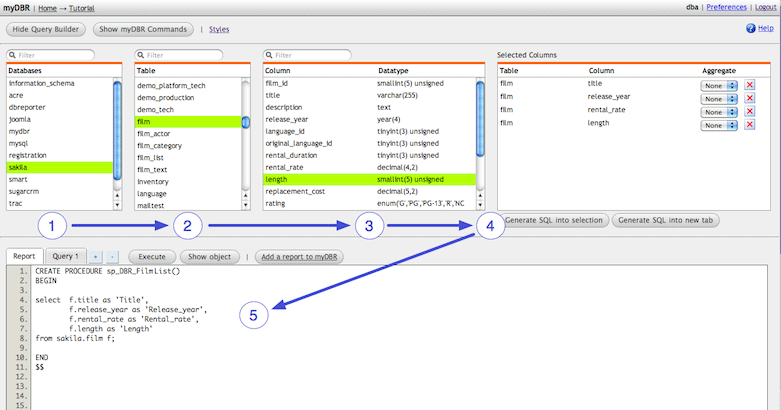
3. Create a new procedure using the Query Browser or manually edit the code
- Select the database
- Select the table
- Select the columns
- Click 'Generate SQL into selection'
- Edit the procedure if necessary and click 'Execute' to save the procedure
Note that each column can be given a name that the user will see as the column header when the report is run. If you do not specify a name, myDBR will derive it from the column or data used.
Assign the Report to the myDBR Report Structure
Click 'Execute' to save the report procedure to the database. If any errors occur, resolve them and click 'Execute' again. Once the stored procedure is successfully saved, click the New report to myDBR button to register the procedure within myDBR's report structure.
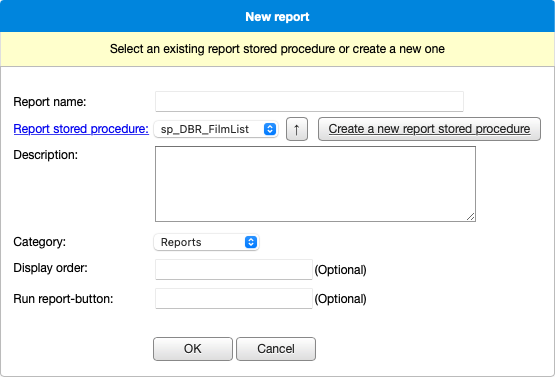
myDBR identifies all procedures that match the required prefix and have not yet been assigned to a report. The Report name is visible to users, and the Description appears in report listings. After submitting the form, the report is registered and ready for use.
For your convenience, myDBR opens a screen where you can name the input parameters and grant privileges to the report. We'll skip this for now and return to the main screen.
You should now see the report on the main screen and be able to run it.
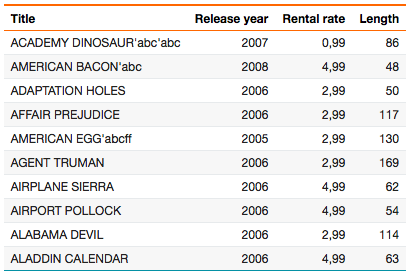
The report includes a title, which, by default, is the same as the report's name. If you wish to change the title in the report, you can use the dbr.title command to achieve this. By default, myDBR makes columns sortable. Just click on a header column to sort the data.
Adding Parameters to a Report
We'll extend the report by adding parameters. Report parameters correspond to stored procedure input parameters. By default, myDBR uses stored procedure parameters 'as is', but myDBR can also enhance parameters by:
- Naming the parameters
- Providing input assistance based on data type (e.g., date pickers)
- Using predefined lists as parameters (e.g., radio buttons, select lists, etc.)
- Using live autocomplete fields from the database (AJAX autocomplete)
- With linked reports automatically fill in parameters based on user input or report flow
In this example, we'll set a film name (or part of it) as a parameter. We'll introduce the parameter in_film_name into the stored procedure.
create procedure sp_DBR_FilmList( in_film_name varchar(30) )
begin

select title as 'Title',
       release_year as 'Release Year',
       rental_rate as 'Rental Rate',
       length as 'Length'
from mydb.film
where title like concat('%', in_film_name, '%');

end
Since the stored procedure has already been assigned to myDBR, we do not need to reassign it. Edit the procedure, and you are ready to run it. When you re-run the report, the parameter is requested as input:

The variable name is not necessarily the name you want the user to see. Let's create a more descriptive name for it. We'll go back to the main screen and edit the report's metadata by clicking the edit link below the report.
You'll go to the screen where you can edit the report's basic information, manage parameters, and assign privileges. We'll give a name to our parameter.

When we re-run the report, we'll see that the new name for the parameter is used.

To learn how to use more advanced features for parameters, please consult the Managing Reports/Report Parameter documentation for further information.