Titles / Text
Commands
dbr.title - Sets the report title. By default, the report's title is the report's name
dbr.subtitle - Gives a name to the result set in a report
dbr.text - Inserts a free text element into the report
Syntax
select 'dbr.title', 'Title text'
select 'dbr.subtitle', 'Subtitle text'
select 'dbr.text', 'Text' [, 'class']
Explanation
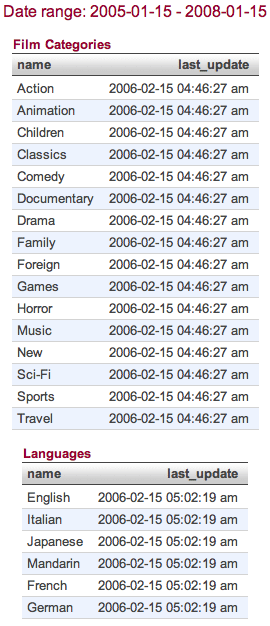
By default, a report uses the name assigned to it in myDBR as its title. This can be changed with the dbr.title command. Typically, report parameters are included in the title.
If you have multiple result sets in the report, you may want to give them a title. This can be done using the dbr.subtitle command.
You can use dbr.text to insert a text element into the report. Carriage returns in the text element are converted to HTML <BR> elements. The text may contain HTML formatting. The optional 'class' parameter defines the CSS class applied to the text. If no class is specified, the default div.dbr_textbox class is used. Custom styles can be defined in user/userstyle.css.
Examples
create procedure sp_DBR_Titles(inFromDate date, inToDate date)

begin

select 'dbr.title', concat('Date range: ', inFromDate, ' - ', inToDate );
select 'dbr.subtitle', 'Film Categories';

select name, last_update
from mydb.category
where last_update between inFromDate and inToDate;

select 'dbr.subtitle', 'Languages';

select name, last_update
from mydb.language
where last_update between inFromDate and inToDate;

end

select 'dbr.text', 'Default text';

select 'dbr.text', "'box'-style textbox", 'box';
select 'dbr.text', "'comment'-style textbox", 'comment';

To add custom text styles, define them in user/userstyle.css.