Appearance
Commands
dbr.accordion - Organizes report elements with accordions
dbr.accordion.close - Marks the end of an accordion
dbr.accordion.class - Defines a custom accordion style using a CSS class
dbr.accordion.style - Defines a custom accordion style using inline CSS
dbr.columnfilter - Adds a column filter that hides non-matching rows
dbr.columnfilter.remember - Remembers the user's filter choice between page refreshes
dbr.column.filter - An alias for dbr.columnfilter
dbr.columnhighlite - Adds a column filter that highlights matching rows
dbr.column.title - Defines a dynamic title for a column whose content changes at runtime
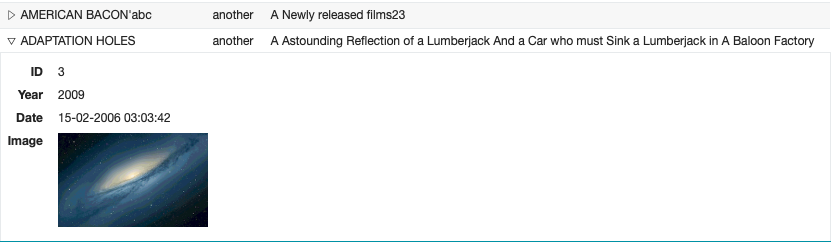
dbr.collapse - Collapses selected columns to create a more compact view
dbr.collapse.template - Uses a template for collapsed data
dbr.colsort - Alias for dbr.sortcol
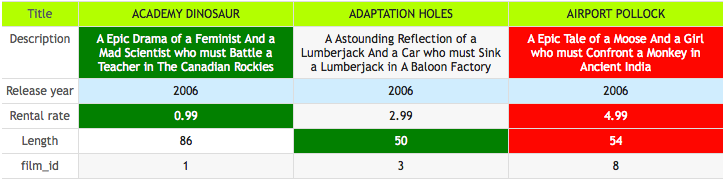
dbr.compare - Shows database results side by side
dbr.compare.options - Changes the compare behavior
dbr.divify - Uses DIVs instead of tables in the output
dbr.header.group - Adds an additional header row to group columns
dbr.keepwithnext - Places the next element side by side with the current one
dbr.lockcolumns - Locks the leftmost columns when the result set is wider than the screen. The 'fixedrow' option allows variable-height columns
dbr.no_data - Defines a placeholder for queries that return no data
dbr.nosort - Disables sorting on specified columns
dbr.parameters.show - Makes the parameter input visible within the report
dbr.pageview - Shows a row in page view format
dbr.rank - Adds a rank to a column
dbr.refresh - Makes the report automatically refresh at a set interval, or immediately if no interval is specified
dbr.resultset.options - Combines multiple result sets by skipping headers or footers
dbr.rownum - Inserts the row number for each row in the result set
dbr.rownum.set - Initializes the rownum value
dbr.search - Enables or disables the search and export UI for a result set
dbr.scrollable - Makes the result set scrollable with a fixed number of visible rows
dbr.sort - Sets the initial sort order
dbr.sortcol - Sorts a column based on values from another column
dbr.sortmethod - Overrides the default sort method for a column
dbr.sortorder - Overrides the default initial sort order (default: 'intelligent')
dbr.sort.remember - Remembers the user's sort order
dbr.header.tooltip - Defines a tooltip for a column header
dbr.toggle - Makes columns and rows togglable
dbr.toggle.options - Sets toggle options
dbr.tooltip - Defines the tooltip for a cell
dbr.pager - Attaches a pager to a table report
dbr.tab - Organizes report elements with tabs
dbr.tab.class - Defines a custom tab style using a CSS class
dbr.tab.close - Marks the end of a tab section
dbr.tab.next - Switches to the next unpopulated tab
dbr.tab.selected - Sets the default tab by name or by tab order number (0=first, 1=second)
dbr.tab.style - Defines a custom tab style using inline CSS
dbr.localization - Overrides the default localization settings
Syntax
select 'dbr.accordion', 'accordion name' [, 'jQuery accordion options']
select 'dbr.accordion.close'
select 'dbr.accordion.class', 'css_classname'
select 'dbr.accordion.style', 'css style definition'
select 'dbr.columnfilter', ColumnReference[[, 'select' [, 'desc', [list of values]]  | 'multiselect' | 'text' | 'daterange'], ['default="defaults" | datefrom, dateto]]
select 'dbr.columnfilter.remember', 1
select 'dbr.column.filter', ColumnReference[[, 'select' [, 'desc', [list of values]]  | 'multiselect' | 'text'], 'default="defaults"]
select 'dbr.columnhighlite', ColumnReference[, 'select' ['desc'] | 'multiselect' | 'text']
select 'dbr.column.title', ColumnReference, title
select 'dbr.collapse', ColumnReference [,ColumnReference... ]
select 'dbr.collapse.template', template_name
select 'dbr.colsort', ColumnReferenceTo, ColumnReferenceFrom
select 'dbr.compare'
select 'dbr.compare.options' [no_compare ColumnRef, ColumnRef... | compare_column ColumnRef_Target, ColumnRef_Compare ]
select 'dbr.divify' [, 'css_classname']
select 'dbr.header.group', 'name', ColumnReferenceFrom, ColumnReferenceTo
select 'dbr.keepwithnext' [, pixels]
select 'dbr.lockcolumns', ColumnReferenceToLockTo [, 'fixedrow' ]
select 'dbr.no_data', 'message', 'css_classname'
select 'dbr.nosort', ColumnReference [,ColumnReference... ]
select 'dbr.parameters.show'
select 'dbr.pageview'
select 'dbr.rank', ColumnReferenceTo, ColumnReferenceFrom[, prefix]
select 'dbr.refresh' [[,seconds], ['counter', ['no_toggle']]]
select 'dbr.resultset.options', 'skip_header_footer' | 'skip_header' | 'skip_footer' | 'json'
select 'dbr.rownum', data from table
select 'dbr.rownum.set', value
select 'dbr.search', 1
select 'dbr.scrollable' [, number_of_rows_to_show ]
select 'dbr.sort', ColumnReference, 'asc' | 'desc'
select 'dbr.sortcol', ColumnReferenceTo, ColumnReferenceFrom
select 'dbr.sortmethod', ColumnReference, 'text' | 'number' | 'currency' | 'ipaddress' | 'url' | 'percent' | 'date' | 'time' | 'rownum'
select 'dbr.sortorder', ColumnReference, 'intelligent' | 'desc' | 'asc'
select 'dbr.sort.remember'
select 'dbr.header.tooltip', ColumnReferenceTo, 'Tooltip text'
select 'dbr.toggle', [columnslist, JSON_toggle]
select 'dbr.toggle.options', 'speed' | 'columns' | 'scroll' | 'height' | 'select_all', value
select 'dbr.tooltip', ColumnReferenceTo, ColumnReferenceFrom
select 'dbr.pager' [, nbr of rows per page, [pager text] ]
select 'dbr.tab', 'tab name' [, ajax_call_for_content | myDBR report ]
select 'dbr.tab.class', 'css_classname'
select 'dbr.tab.close'
select 'dbr.tab.next'
select 'dbr.tab.selected', tab
select 'dbr.tab.style', 'css style definition'
select 'dbr.localization', 'thousand_separator' | 'decimal_separator' | 'date_format' | 'time_format', localization_format
Syntax Tips
Where:
-
JSON_toggle
nameCheckbox titleclass(optional) Checkbox CSS-class (in case you wish to toggle the item via JavaScript)resultclass(optional) CSS-class that will be added to the table when a checkbox is clickedcallback(optional) A JavaScript function to be called when a checkbox is clicked. The parameter passed to the function is the checkboxcols(optional) An array of columns to be toggled when a checkbox is clickedrows(optional) An array of row classes to be toggled when a checkbox is clicked
-
Toggle options
speedA string or a number determining how long the animation will runcolumnsHow many columns will the toggle dialog showscrollDetermines if the toggle dialog shows a scrollbar (value=1)select_allDetermines if the toggle dialog shows a Select All/Deselect All checkbox in the headerheightSets the height of the toggle dialog
Pageview
dbr.pageview
The dbr.pageview command is used to show one row in a record-style format.
Example
Select a single row as a result set:
  select title, description, release_year, special_features, last_update
  from mydb.film f
  where film_id=1;
The result is a single row.

When the dbr.pageview command is applied, the result is displayed in the following more readable layout:
  select 'dbr.pageview';

  select title, description, release_year, special_features, last_update
  from mydb.film f
  where film_id=1;

Collapsible Columns
dbr.collapse
Sometimes, the number of columns in a report can make it too wide and difficult to read. With collapse functionality, you can hide some columns from the initial display but still allow users to show them by clicking the row.
The collapse functionality is similar to the 'inline' linked report, but unlike that approach, it does not require a linked report. The 'inline' linked report offers more layout flexibility.
Adding the CSS class collapse_open to a row opens it by default. Alternatively, you can use a template with collapsible rows using the command dbr.collapse.template.
  select 'dbr.collapse', 'ID', 'Year', 'Date', 'Image';
  select 'dbr.colstyle', 'Image', '[width:150px]image';

  select
      Title,
      Description,
      ID,
      Year,
      Date,
      Image
  from mydb.data;
Placing Elements Side by Side
The dbr.keepwithnext command.
By default, a myDBR report lays out elements on separate lines. To place elements next to each other, use dbr.keepwithnext. Optional parameters can define the space around the elements. For more details, refer to layouts.
Creating an Automatic Row Number
The dbr.rownum command.
You can instruct myDBR to generate automatic row numbers using dbr.rownum. In the following example, the report outputs two columns, with the first column displaying row numbers.
select 'dbr.rownum' as 'Row number', title
from film;
Adding Additional Column Header Group
The dbr.header.group command.
Group normal query columns (not crosstab) with an additional header row using dbr.header.group.
select 'dbr.header.group', 'Used', 'hours_used', 'cost_used';

select 'dbr.header.group', 'Budget', 'hours_budget', 'cost_budget';

select
    phase as 'Phase',
    hours_used as 'Hours[hours_used]',
    cost_used as 'Cost[cost_used]',
    hours_budget 'Hours[hours_budget]',
    cost_budget as 'Cost[cost_budget]'
from mydb.data;

Set Column Sorting and Override the Default Sorting Method for a Column
dbr.sort, dbr.sortmethod, dbr.colsort
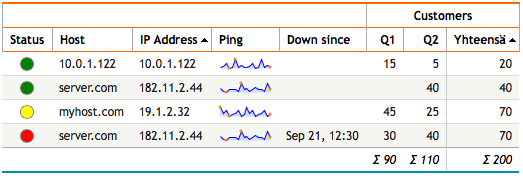
By default, myDBR reports make columns sortable, allowing users to sort by clicking the header. myDBR supports multilevel sorting and offers various sorting methods that intelligently handle different data types. The dbr.sort command specifies a column and its sorting order. Multiple dbr.sort commands enable multilevel sorting.
Example: Define predefined sorting orders, such as ascending by amount and ascending by IP address. Ensure that the first column, containing both IP addresses and hostnames, is sorted alphabetically. Sort the IP address column based on its actual numerical value.
select 'dbr.sort', 'amount', 'desc';

select 'dbr.crosstab', 'Quarter';
select 'dbr.sum', 'amount';
select 'dbr.hsum', 'amount';
select 'dbr.hidecolumn', 'down'; // This is used for sorting

select 'dbr.sortmethod', 'Host', 'text';
select 'dbr.sort', 'amount', 'asc';
select 'dbr.sort', 'ip', 'asc';
select 'dbr.sortcol', 'Down since', 'down'; // Sort 'Down since'-column based on datetime from column 'down'

select
  status as 'Status',
  host_ip as 'Host',
  ip_address as 'IP Address[ip]',
  ping,
  date_format(down, '%D %b, %H:%i') as 'Down since',
  down,
  quarter as 'Quarter',
  amount as '[amount]'
from mydb.mytable;
Add a Rank Column
A rank column is added based on row order. The reference column determines whether subsequent rows share the same rank. The command does not sort rows; it uses the column order as returned by the query.
select 'dbr.rank', '#', 'v', 'T';

select null as '#', 10 as v
union all
select null, 20
union all
select null, 20
union all
select null, 20
union all
select null, 30
union all
select null, 30
union all
select null, 40
union all
select null, 50
order by v;

Disabling Sorting on Selected Columns
dbr.nosort
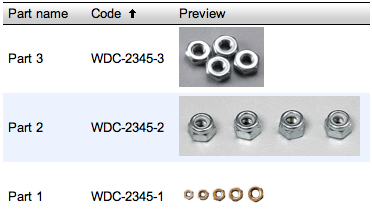
If a specific column or the entire result set should not be sortable, use dbr.nosort to disable sorting on selected columns or altogether. If no columns are specified or the column number is set to zero, sorting is disabled for the entire report. Disabling sorting can improve initialization speed for large result sets, since sorting is performed via JavaScript in the browser and can be slow on older machines or browsers.
Disable sorting on the image column:
select 'dbr.nosort', 'Preview';

select 'Part 1' as 'Part name',
       'WDC-2345-1' as 'Code',
       'dbr.html:<img src="http://www.mysite.com/parts/WDC-2345-1.jpg">' as 'Preview'
union
select 'Part 2',
       'WDC-2345-2',
       'dbr.html:<img src="http://www.mysite.com/parts/WDC-2345-2.jpg">'
union
select 'Part 3',
       'WDC-2345-3',
       'dbr.html:<img src="http://www.mysite.com/parts/WDC-2345-3.jpg">';
The user can now sort columns 1 and 2, but sorting on column 3 is disabled:
Search/Export Visibility
dbr.search
By default, myDBR places the export and search/filter options behind a small triangle. You can modify this behavior using the dbr.search command. Setting it to 1 displays the export/filter area by default, while setting it to 0 hides it altogether.
select 'dbr.search', 1;
Additionally, you can configure the export and search/filter functionality to be visible by default by adding the following rule to your userstyle.css: div.search { display: block; }
Note: You can also set the search/export feature to be on by default by adding
$mydbr_defaults['search'] = true;to the defaults.
Auto Refresh
dbr.refresh
When used, the report automatically refreshes at the specified interval.
The first optional parameter is 'seconds', specifying the refresh interval. When omitted, the refresh happens immediately. This is useful, for example, when an editable report returns dbr.refresh to immediately display the updated values.
The second optional parameter is 'counter'. When used, the elapsed seconds are shown at the top of the report, and the user can pause the counter by clicking on it.
The third optional parameter is 'no_toggle'. When used, the counter is visible but cannot be stopped by the user.
select 'dbr.refresh', 5; /* Refresh after 5 seconds */

select 'dbr.refresh', 50, 'counter'; /* Refresh after 50 seconds. User can stop the counter by clicking on it. */

select 'dbr.refresh', 50, 'counter', 'no_toggle'; /* Refresh after 50 seconds. User cannot stop the counter. */
Set Dynamic Column Title
dbr.column.title
If a column contains dynamic data, its title can also be dynamic.
if (in_Gross>0) then
  select 'dbr.column.title', 'grossnet', 'Gross';
else
  select 'dbr.column.title', 'grossnet', 'Net';
end if

select Name, if ( in_Gross>0, gross, net ) as '[grossnet]'
from mytable;
Show Parameters Within the Report
dbr.parameters.show
By default, a myDBR report allows parameters to be changed when the user clicks the "Change report parameters" button. The dbr.parameters.show command makes the values visible by default.
select 'dbr.parameters.show';
Use DIV's Instead of Tables
dbr.divify
By default, myDBR shows report results as HTML tables. The dbr.divify command allows using DIVs instead. This enables more flexible formatting with CSS and post-processing with JavaScript.
Example:
select 'dbr.divify', 'divifythis';
select 'dbr.hidecolumns', 'divrow';
select 'dbr.rowclass', 'divrow';

select name, population, code, 'divrow'
from countries;
This produces the following HTML:
<div class="divifythis">
  <div class="divrow">
    <div class="name">Maldives</div>
    <div class="population">286 000</div>
    <div class="code">MDV</div>
  </div>
  <div class="divrow">
    <div class="name">Brunei</div>
    <div class="population">328 000</div>
    <div class="code">BRN</div>
  </div>
</div>
Paging Result Sets
dbr.pager
myDBR provides a client-side pager for browsing large result sets.
The pager lets you embed large tables into the report while keeping the element size under control. It displays a pager component above the result set, enabling users to navigate through the results efficiently.
select 'dbr.colstyle', 'release', '%d'; // Formatting the year -> will not use the thousand separator


select 'dbr.pager', 5;

select title as 'Title',
       release_year as 'Release Year[release]',
       rental_rate as 'Rental Rate',
       length as 'Length'
from film;

Note: The pager is a client-side feature designed for result sets of a reasonable size. For very large result sets, consider limiting the number of rows or using linked reports, as users typically struggle to work with very large data sets.
Using Tabs to Organize Your Report Content
dbr.tab, dbr.tab.next, dbr.tab.style, dbr.tab.class
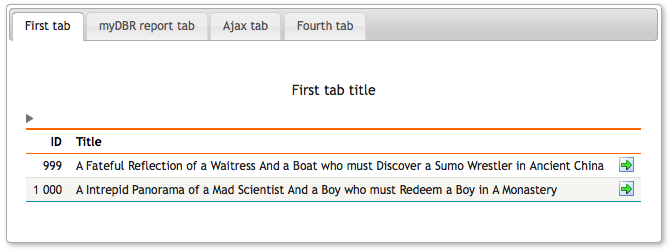
Tabs in myDBR allow you to divide report content into multiple sections that can be switched to save space or organize information more effectively. Each tab can either contain static elements or fetch content dynamically via Ajax when clicked.
To create tabs, start by using the dbr.tab command. The first parameter is the tab's name, and the optional second parameter can be a URL for an Ajax call or the name of a myDBR report (including parameters) that will be fetched when the tab is clicked. If no second parameter is provided, the tab's content is expected to follow later in the report.
After declaring tabs, define the content for each tab that does not fetch content dynamically (via Ajax or myDBR report). Use the dbr.tab.next command to select the next tab that hasn't been assigned an Ajax URL or myDBR report.
Customize the appearance of tabs using dbr.tab.style and dbr.tab.class. These commands are useful for setting custom styles, such as fixed tab widths while allowing variable content widths between tabs.
/* Declare the tabs. The second tab is fetched via ajax when the user clicks the tab. In case of myDBR report add &embed=1 to the end of the URL */

select 'dbr.tab', 'First tab';
select 'dbr.tab', 'myDBR report tab', 'sp_DBR_linked_report', v_param_1;
select 'dbr.tab', 'Ajax tab', 'report.php?r=548&m=1&h=55589f83ec7daa84432118425499bd5875f6d6fa&embedi=1';
select 'dbr.tab', 'Fourth tab';

/* Now the tabs are declared, so the content of 'First tab' is populated */

select 'dbr.title', 'First tab title';

select ID, Title, release_year as 'Year'
from film;

/* dbr.tab.next moves to next unpopulated tab which is the 'Fourth tab' */
select 'dbr.tab.next';

call sp_DBR_another_report( inMyParam );

select 'dbr.tab.close';
Using Accordions to Organize Your Report Content
dbr.accordion, dbr.accordion.close, dbr.accordion.style, dbr.accordion.class
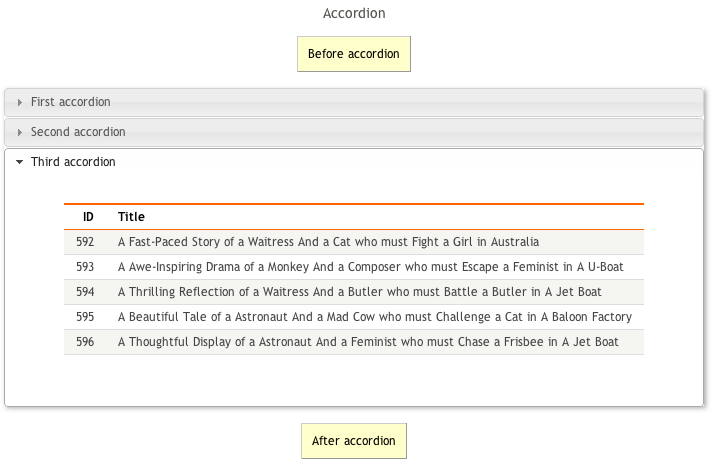
An accordion is a user interface element, similar to a horizontal tab, designed to display a limited number of items at once.
To create an accordion in myDBR, start with the dbr.accordion command. Each subsequent dbr.accordion command adds a new accordion section to the existing accordion. Place the content for each accordion section immediately after the corresponding dbr.accordion command. Close the accordion with dbr.accordion.close once all sections are defined.
Customize the behavior of the accordion using jQuery accordion options as the second parameter to dbr.accordion. For example, use the 'active' option to define the default open section (starting from zero). Use 'active:false' to have all sections closed by default. Enable multiple sections to be open simultaneously with 'multiopen:true'. Separate multiple options with commas, like 'active:false, multiopen:true'.
Adjust the accordion's style using dbr.accordion.style and dbr.accordion.class. The former applies CSS styles directly, while the latter assigns a CSS class to the accordion wrapper div.
select 'dbr.text', "Before accordion", 'comment';

select 'dbr.accordion.style', 'width:700px';

select 'dbr.accordion', 'First accordion';

select 'dbr.text', "This is part of 'First accordion'-content", 'comment';

/* Some other content for first accordion */

select 'dbr.accordion', 'Second accordion';

call sp_DBR_accordion_2_content();

select 'dbr.accordion', 'Third accordion';

select ID, Title
from mydb.film;

select 'dbr.accordion.close';

select 'dbr.text', "After accordion", 'comment';
Placeholder for Nonexistent Data
dbr.no_data
You can define a placeholder for queries that return no data. By default, myDBR outputs the query header without any rows, and for charts, it creates a placeholder chart element. Use the dbr.no_data command to display a custom message instead.
If no CSS class is specified, myDBR applies the default style defined by 'div.no_data'. To use a custom CSS class, include it as the second parameter of the command.
select 'dbr.no_data', "No films were found", 'comment';

select ID, Title
from mydb.film
where film_creation>'2020-01-01';
Sticky Headers
By default, a myDBR report uses sticky headers, where the table headers stay fixed on the screen as the user scrolls the document. You can disable this behavior by adding the CSS class fixedheader to the result set.
Lock Leftmost Columns
dbr.lockcolumns
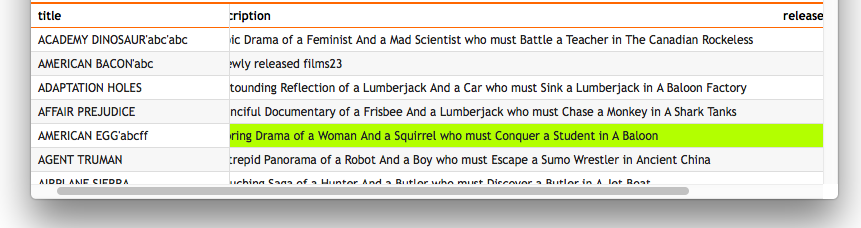
When dealing with a wide result set and scrolling horizontally, you may want to keep the leftmost columns always visible. The dbr.lockcolumns command allows you to achieve this. Its first parameter specifies the last column to remain locked. An optional second parameter, 'fixedrow', maintains a constant row height, which is useful when cell data spans multiple rows.
select 'dbr.lockcolumns', 'title';

select
    title,
    description,
    release_year
from film f;
Using Column Filters
dbr.columnfilter
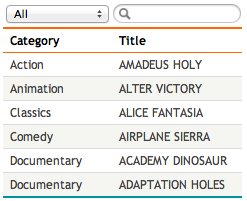
Column filters enable you to filter rows based on the data in each column. A column filter can be implemented as a select list, a multiselect list, or a text field. For select lists, you can optionally sort the values in descending order using the parameter desc.
The textfilter allows default to be set to an empty column by using 'default=_blank'.
By default, select and multiselect filters display all possible values from the column. You can append additional values, useful when editing reports add new entries. Default values for filters can be set using the default=value syntax for select and text filters, while multiselect filters use a JSON array format like 'default=["First","Second"]'.
By default, the column filter maintains a fixed table width to ensure a consistent user interface. If you prefer a dynamic table width based on content, add the resultclass attribute flexible-width-columnfilter to the result set.
select 'dbr.columnfilter', 'Category', 'select';

select 'dbr.columnfilter', 'Title', 'text';

select
    g.name as 'Category',
    title as 'Title'
from film f
    join film_category fg on f.film_id=fg.film_id
    join category g on g.category_id =fg.category_id;
Setting initial default values:
select 'dbr.columnfilter', 'Category', 'select', 'default=Classics';

select 'dbr.columnfilter', 'Title', 'text', 'default="The Shawshank Redemption"';
select 'dbr.columnfilter', 'Year', 'multiselect', 'default=["1994","1995"]';

select
    g.name as 'Category',
    title as 'Title',
    release_year as 'Year'
from film f
    join film_category fg on f.film_id=fg.film_id
    join category g on g.category_id =fg.category_id;

Additional values for an editable report that appends new entries:
select 'dbr.columnfilter', 'Category', 'select', 'Classics', 'Horror', 'Additional category';

select
    g.name as 'Category',
    title as 'Title',
    release_year as 'Year'
from film f
    join film_category fg on f.film_id=fg.film_id
    join category g on g.category_id =fg.category_id;
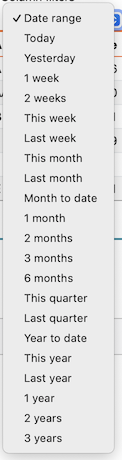
The daterange filter shows preset date range options to the user. When specific dates are provided, only the ranges that fit within the given date range are shown.
select 'dbr.columnfilter', 'daterange', '1900-01-01', '2026-12-31';


select update_date,
    title as 'Title'
from mydata;
Toggle Columns/Rows
dbr.toggle
With dbr.toggle, users can toggle the visibility of selected columns/rows. When dbr.toggle is used without parameters, users are shown a list of columns whose visibility they can toggle. If you want users to toggle only selected columns, list the ColumnReferences as parameters. This gives you full control over the items to be toggled/postprocessed.
select 'dbr.toggle';

select film_id as 'ID', title as 'Title', description as 'Description'
from film f;

Example With Complete Control of Rows/Columns/Styles
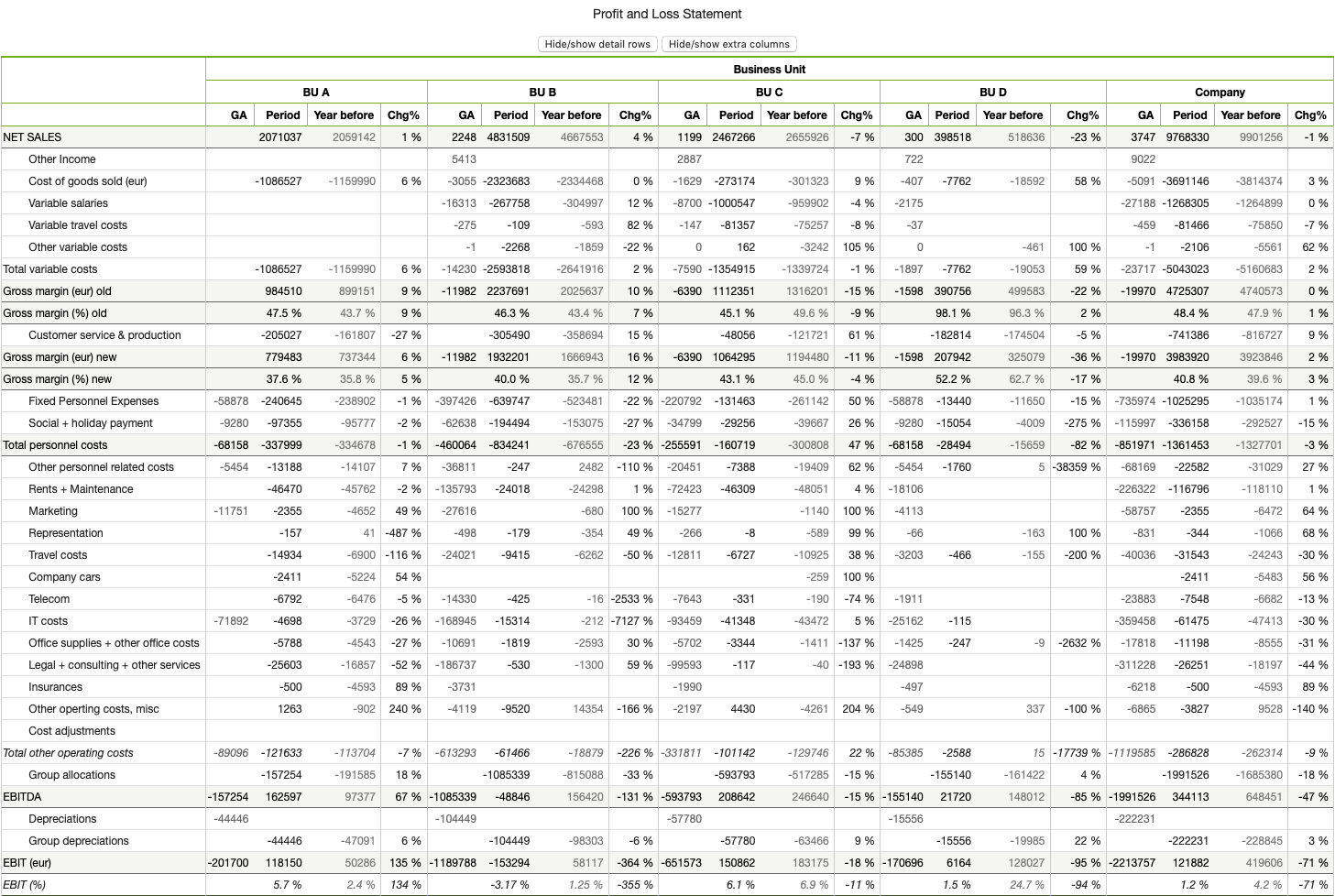
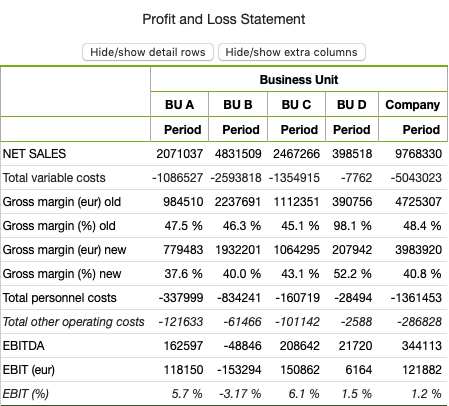
You can pass a JSON array as a parameter to dbr.toggle. Each element in the array represents one toggle. The first one toggles the rows with the 'account' CSS class. The checkbox will have a CSS class 'rowbutton', and the CSS class 'toggledrows' will be added or removed from the table when toggled. Finally, the JavaScript function is called to allow full customization of the toggle. The other item, 'Show/Hide columns', simply toggles the selected columns.
Instead of displaying the toggle menu for the user, buttons are shown, and the checkboxes are clicked via JavaScript.
-- Hide the toggle icon, we'll use buttons instead
select 'dbr.css', '.toggle_img {display:none}';

select 'dbr.purehtml', '<input type="button" value="Hide/show detail rows" onclick="$(''.rowbutton'')[0].click();">';
select 'dbr.purehtml', '<input type="button" value="Hide/show extra columns" onclick="$(''.colbutton'')[0].click();">';

select 'dbr.javascript', 'function myfunc(checkbox) { alert("Callback"); }';
select 'dbr.toggle','[
  {
   "name":"Show/Hide rows",
   "class":"rowbutton",
   "resultclass":"toggledrows",
   "callback": "myfunc"
   "rows":["account"]
  }]
  ';
select 'dbr.toggle','[
  {
  "name":"Show/Hide columns",
   "class":"colbutton",
   "cols":["thisyear_ga", "thisyear_format", "lastyear", "chg"]
  }]
';

select ...
from pl_statement...
Initial report:
Output when columns and rows are toggled, and the CSS class is applied to the result:
Resultset Options
dbr.resultset.options
Result set options allow you to combine multiple result sets into one table. A result set can originate from a query or a template inserted into the report element. This feature is also used with the 'json' option in SQL Server to indicate that the data will be JSON.
Compare
dbr.compare
With dbr.compare, you can display rows of result sets side-by-side and optionally format values such as minimum, maximum, and equal from different rows.
By default, each cell is assigned a CSS class (compare_min, compare_max, compare_same). You can exclude a column from comparison using dbr.compare.options with 'no_compare', 'ColumnRef'. Additionally, you can specify a comparison source column for a selected column by using dbr.compare.options with 'compare_column', 'ColumnRef_Target', 'ColumnRef_Compare'.
select 'dbr.css', '.compare_min {background: green; color:white;}';
select 'dbr.css', '.compare_max {background: red; color:white}';
select 'dbr.css', '.compare_same {background: #d0edfe;}';

select 'dbr.colstyle', 'Description', '[width:200px]';
select 'dbr.colstyle', 'Release year', '%d';

select 'dbr.compare';

-- Do not compare Title and film_id columns
select 'dbr.compare.options', 'no_compare', 'Title', 'film_id';

-- Compare Description-column based on film_id
select 'dbr.compare.options', 'compare_column', 'Description', 'film_id';

select
  f.title as 'Title',
  f.description as 'Description',
  f.release_year as 'Release year',
  f.rental_rate as 'Rental rate',
  f.length as 'Length',
  f.film_id
from demo.film f
where f.film_id in (1, 3, 8);