Applying Styles
Applying Styles
myDBR offers commands for formatting individual report elements when the default formatting is not sufficient.
Styles can alter all visual aspects of the data: formatting, color (background, foreground), font, and more. Styles can be applied to several elements in the result set: individual rows, columns, headers, and footers. myDBR supports global styles that can be shared between reports, and styles can also be defined dynamically within a report. To maintain a consistent look and feel across reports, it is recommended to use styles defined by parameters.
Commands ending with "class" take a CSS class as a parameter. You can define a CSS class with the dbr.css command or by adding the class definition to the user/userstyle.css file, making it available to every report.
Common use cases for formatting are:
- Hiding columns that are still needed when passing parameters to another report via report linking
- Formatting columns (content formatting, foreground/background colors, fonts)
- Formatting report rows (colors, fonts)
- Formatting individual cells (colors, fonts, content formatting)
- Formatting result set headers and footers
myDBR also supports global styles that can be applied to elements via the mydbr_style function. See global [Styles][/prefs/styles] in Preferences for details.
Commands
dbr.hidecolumns - Hides a specified number of columns from the right end of the result set
dbr.hidecolumn - Hides individual columns, which can be positioned anywhere in the query
dbr.showcolumn - Shows individual columns that were automatically hidden
dbr.rowstyle - Applies a CSS style to report rows. A column in the query provides the CSS style for each row
dbr.rowclass - Applies a CSS class to report rows. A column in the query provides the CSS class name for each row
dbr.colstyle - Sets a report column's style, combining printf formatting and CSS style definitions
dbr.colclass - Adds a CSS class to a specified report column
dbr.cellstyle - Applies a CSS style to individual cells based on a value in another column, enabling value-based formatting
dbr.cellclass - Applies a CSS class to individual cells based on a value in another column, enabling value-based formatting
dbr.cellformat - Applies a per-row printf format to a column using format strings from another column, allowing cells in the same column to be formatted differently across rows
dbr.hideheader - Hides the column headers in the result set
dbr.headerstyle - Sets the header row style
dbr.header.colstyle - Sets the style for an individual header column
dbr.summary.colstyle - Sets the style for an individual summary column
dbr.header.colclass - Sets the CSS class for a header column
dbr.footerstyle - Sets the footer row style
dbr.footer.colclass - Sets the CSS class for a footer column
dbr.footer.colstyle - Sets the style for a specific footer column
dbr.footer.cellclass - Sets the footer's CSS class based on data in another footer column
dbr.footer.cellstyle - Sets the footer's CSS style based on data in another footer column
dbr.resultclass - Adds a custom CSS class to the result table
dbr.html5data - Places a column's value into another column's HTML5 data-xxx attribute
dbr.html5data.rs - Adds an HTML5 data attribute to the result set table
dbr.sum_prefix - Override the default sum-prefix
dbr.min_prefix - Override the default min-prefix
dbr.max_prefix - Override the default max-prefix
dbr.avg_prefix - Override the default avg-prefix
dbr.count_prefix - Override the default count-prefix
Syntax
select 'dbr.hidecolumns', ColumnReference / nbr of columns from right to hide
select 'dbr.hidecolumn', ColumnReference [, ColumnReference...]
select 'dbr.showcolumn', ColumnReference [, ColumnReference...]
select 'dbr.rowstyle', ColumnReference
select 'dbr.rowclass', ColumnReference
select 'dbr.colstyle', ColumnReference, {ColumnReference2...}, columnstyle
select 'dbr.colclass', ColumnReference, {ColumnReference...}, css_classname
select 'dbr.cellstyle', ColumnReference, {ColumnReference...}, CSSStyle_ColumnReference
select 'dbr.cellclass', ColumnReference, {ColumnReference...}, CSSclass_ColumnReference
select 'dbr.cellformat', ColumnReference, {ColumnReference...}, ColumnFormat_ColumnReference
select 'dbr.hideheader'
select 'dbr.headerstyle', rowstyle
select 'dbr.header.colstyle', css_style
select 'dbr.summary.colstyle', css_style
select 'dbr.header.colclass', ColumnReference, css_classname
select 'dbr.footerstyle', rowstyle
select 'dbr.footer.colclass', ColumnReference, {ColumnReference...}, css_classname
select 'dbr.footer.colstyle', ColumnReference, {ColumnReference...}, columnstyle
select 'dbr.footer.cellclass', ColumnReference, {ColumnReference...}, CSSclass_ColumnReference
select 'dbr.footer.cellstyle', ColumnReference, {ColumnReference...}, CSSstyle_ColumnReference
select 'dbr.resultclass', 'myclass'
select 'dbr.html5data', 'ColumnReferenceTo', 'ColumnReferenceFrom', 'data-element-name'
select 'dbr.html5datars', 'data-element-name',  'value'
select 'dbr.sum_prefix', 'Summe'
select 'dbr.sum_prefix', 'Minimum'
select 'dbr.sum_prefix', 'Maximum'
select 'dbr.sum_prefix', 'Mittel'
select 'dbr.count_prefix', 'Anzahl'
Column Hiding
Hidden columns are used to include values such as IDs that are not shown to the user but are needed for report linking, other functionality, or calculations. Columns can be hidden using the dbr.hidecolumns and dbr.hidecolumn commands. The dbr.hidecolumns command hides a number of columns from the right end of the result set, where ColumnReference marks the first column to be hidden. The dbr.hidecolumn command hides individual columns regardless of their position.
/*
  Show only the customer name for the user, but link the report on customer ID
  We will hide 1 column from the end
*/
select 'dbr.report', 'sp_DBR_MoreCustomerInfo', 'ID=ID';
select 'dbr.hidecolumns', 'ID';

select Name, ID
from mydb.Customer;
Define a Column Style
In tabular reports, you may need to format a column differently from the default style. You can apply a style using the dbr.colstyle command, which takes one parameter: the style definition. myDBR offers global styles that can be shared between reports. These styles can be accessed using the built-in mydbr_style function. Alternatively, you can use ad-hoc or dynamic styles as parameters. It is recommended to use global styles when dynamic styling is not required.
The column style can be used to format an image when fetching an image blob from the database.
The column style can also contain a calculation format (using PHP syntax). This is useful in cases where you have numbers with decimals and want to show rounded numbers to the user while maintaining high accuracy for summary calculations.
The column style has a format consisting of:
Positive value style [; Zero value style [; Negative value style] ]
The format of each of these (positive, zero and negative) styles is:
[CSS style definition] printf arguments for the value
You can omit the CSS or printf part of the style if you do not need one.
The column style when fetching image blobs directly from the database is:
[image CSS-style]image
In the example, we have defined a style called 'AlternateColorDecimal' in Preferences. The style is defined as:
[color: green]%.2f; ;[color: red;]%.2f
Positive numbers are in green with 2 decimals, zero is set to space (blank), and negative numbers are in red with 2 decimals:
/*
  Apply a predefined style for the column Total
*/
select 'dbr.colstyle', 'Total', mydbr_style('AlternateColorDecimal');

select Name, Total
from mydb.Customer;
The result shows numbers formatted accordingly:

Other examples:
-
A decimal number with just one decimal in green:
[color: green]%.1f -
Text on a yellow background
[background-color: yellow;] -
Integer number without a thousand separator (by default the thousand separator from Environment settings is used)
%d -
Limiting column width (200px) and preventing line wrapping without losing the information for export. Will put an ellipsis on the end of the column if the column is too wide.
[overflow:hidden; white-space: nowrap; text-overflow:ellipsis; width: 200px; max-width: 200px;] -
An extension to printf-format (%0.0N for zero decimals, %0.2N for two decimals), myDBR allows formatting negative numbers as positive, allowing accountant-style formatting (optionally with parentheses). The following format would show the negative numbers as positive, in red, wrapped in parentheses. Sorting will still be done with actual values.
%0.1f;-;[color:red](%0.1N); -
Show datetimes and times without seconds:
HH:MM
Summary Calculation with Column Style
The summary calculation always uses full decimal precision, even when the displayed row values are rounded.
The following example shows the summary column at full accuracy.
/*
  Apply a style for the column to display the value in one decimal. The summary calculation is done using full accuracy
*/
select 'dbr.colstyle', 'Rounded', '%.1f';
select 'dbr.sum', 'Original', 'Rounded';

select item_value as 'Original', item_value as 'Rounded'
from mydb.mydata;
The result shows numbers formatted accordingly:

Define a Row Style
You can also define a style for an individual row. This is less common than column styling, but useful when individual rows need different formatting. Since a row can contain multiple columns with different data types, row styles can only affect appearance, not content formatting. Unlike column styles, row styles are defined within the data itself; the dbr.rowstyle command specifies which column contains the style value.
/*
  Some rows are drawn with white-on-red
*/
select 'dbr.rowstyle', 'rowstyle';

select 'First row' as 'Col 1', '' as 'Col 2[rowstyle]'
union all
select 'Second row', mydbr_style('WhiteOnRed')
union all
select 'Third row', '';
This produces a row with the defined style attributes. Typically, the style column is placed at the end of the column list and hidden from the output.

Row style is simply a CSS-format string.
CSS style definition
Some example styles:
-
White text on a red background: color: white; background-color: red;
-
Big font font-size: 18px;
Define a Cell Style or Class
With the cell style, you can define a style for each individual cell in the report. You can also use a CSS class to achieve the same effect.
/*
  Color red cells whose value is less than 14. Other cells will be green
*/
select 'dbr.crosstab','Month';
select 'dbr.hidecolumns', 'style';
select 'dbr.cellstyle', 'value', 'style';

select name,
       Month,
       value as '[value]',
       if (value<14,'color:red','color:green') as 'style'
from mydb.mydata;
The following example produces the same result using dbr.cellclass with the predefined CSS classes redclass and greenclass:
/*
  Color red cells whose value is less than 14. Other cells will be green
*/
select 'dbr.css', '.redclass {color:red;} .greenclass {color:green;}';
select 'dbr.crosstab','Month';
select 'dbr.hidecolumns', 'class';
select 'dbr.cellclass', 'value', 'class';

select name,
       Month,
       value as '[value]',
       if (value<14,'redclass','greenclass') as 'class'
from mydb.mydata;
Both produce the same output:

Hiding the Header from a Result Table
To hide the column headers in a tabular report, use the dbr.hideheader command. This command takes no parameters.
/* Don't show the header */

select 'dbr.hideheader';

select Year, Title, Inventory, Items
from mydb.Exampledata
order by Year, Title;
This produces the result set without the header:

Header and Footer Styles
Header styles can be defined using a CSS style or CSS class (dbr.header.colclass and dbr.headerstyle commands).
Footers can have a consistent style applied across all footer sections (subtotals and totals). These styles can be set using the commands dbr.footer.colstyle and dbr.footer.colclass. You can also format individual cells within footers based on their values using dbr.footer.cellclass and dbr.footer.cellstyle.
/* Turn the header's background to yellow */

select 'dbr.headerstyle', 'background-color: black;';

select Year, Title, Inventory, Items
from mydb.Exampledata
order by Year, Title;
This produces the result set with a black header:

Custom CSS Class for the Result Tables
To apply a custom CSS class to a result table, define the style in userstyle.css (or embed it inline using dbr.html:).
The following example creates a custom invoice box style and renders the data using dbr.pageview:
table.invoicebox {
    border: 1px solid black;
}

table.invoicebox tr {
    border: none;
}

table.invoicebox td {
    background-color: #EFEFEF;
}

/* Turn the headers background to yellow */

select 'dbr.pageview';
select 'dbr.resultclass', 'invoicebox';

select  nbr as 'Invoice number',
        invoice_date as 'Date',
        interest as 'Interest';
from invoices
where nbr = 1
This produces the desired result:

Formatting Columns and Footers Based on Data
The following example formats both data cells and footer cells using CSS classes determined by the row values.
-- Define the styles
select 'dbr.css', '.text_green {color:green}';
select 'dbr.css', '.text_red {color:red}';

-- Format data cells and the footer alike
select 'dbr.cellclass', 'Diff', 'color';
select 'dbr.footer.cellclass', 'Diff', 'color';

select 'dbr.sum', 'Value', 'Budget';
select 'dbr.calc', 'Diff', '[Value] - [Budget]';

-- Calculate the CSS class to be used
select 'dbr.calc', 'color', "[Value]>=[Budget] ? 'text_green' : 'text_red'";

select Date, Value, Budget, null as Diff, null as 'color'
from mydata;
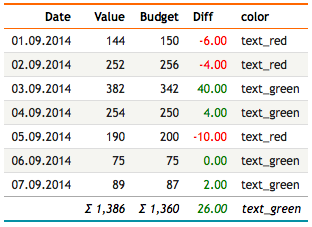
Using HTML5 data-* Attributes
With the dbr.html5data command, you can convert a column's values into HTML5 data attributes. This is useful when JavaScript needs to access the data. The dbr.html5data.rs command adds a data attribute to the result set table element.
/* Turn the header's background to yellow */

select 'dbr.html5data.rs', 'line', v_line_variable;
select 'dbr.html5data', 'Title', 'data_code', 'code';

select Title, data_code
from mydb.Exampledata;
This produces a table cell with the data-code attribute:
  <table data-line="20">
  ...
  <td data-code="a3-2x" class="cell">180</td>
The data attributes can be accessed with pure JavaScript element.dataset.code or using jQuery $(element).data('code').
Fetching Images from the Database
The image width is set to 150px using the CSS style width: 150px. The image keyword instructs myDBR to determine the image format from the incoming data stream.
select 'dbr.colstyle', 'image_data', '[width:150px]image';

select image_data
from images;

select item_value as 'Original', item_value as 'Rounded'
from mydb.mydata;