Linked Reports
Commands
dbr.report - Creates a link to another report
dbr.url - Creates a link to an external URL
dbr.button - Creates a button containing a link
dbr.list - Creates a list containing a link to a report
dbr.embed_object - Creates a placeholder or popup window for the linked report's content
dbr.selectlist - Creates a select list for linked reports
dbr.searchable - Creates a search field to get dynamic content
Syntax
select 'dbr.report', procedure_name, [ColumnReference, ] [embed_target, ] [parameter_name=ColumnReference/ParameterReference, ...] [parameter_name*=ColumnReference/ParameterReference, ...] [parameter_name<=ColumnReference/ParameterReference, ...] [parameter_name="constant", ...] [,event=click|dblclick] [,callbefore=callbefore_function] [,append=url_parameter] [,'"menu title"'] [,show_link=expression] [html5-data-attribute] [,http_method=post],[callpopupclose=popupclose_function], [callpopupsubmit=popupsubmit_function], [,'use_post'], [post_callback=post_callback_function] [plain_URL=1]
select 'dbr.url', external_url_base, 'URL name', [ColumnReference, ] [embed_target, ] [<=ColumnReference/ParameterReference to be added to base URL][parameter_name=ColumnReference/ParameterReference, ...]
select 'dbr.button', [button text / ColumnReference ], [button class], [button wrapper class]
select 'dbr.list', [list_class], [menutitle]
select 'dbr.embed_object', embed_target [, embed_class]
select 'dbr.selectlist', default_selection, title[, 'find' [, select_class]]
select 'dbr.searchable', procedure_name[, 'placeholder text' [parameter_name=ColumnReference/ParameterReference, ...]]
Syntax Tips
Where:
-
ColumnReference The optional parameter to which the linked report is attached. If no column is specified, the linked report is displayed in the link menu, which is automatically attached to the object. Note that the ColumnReference must be enclosed in brackets (e.g.,
[ColumnReference]).A ColumnReference can also be the "magic word"
row. In this case, the report is attached to the entire row. Any cell, except those already containing other linked reports, will act as the starting point for the report.When a ColumnReference refers to a crosstab's data column, the link is generated for each repeated data column within a row.
If you want to attach a linked report to a crosstab's horizontal summary column, use the format
[ColumnReference.h]. -
embed_target This parameter defines where the output of the linked report is placed. Options include navigating to a new report, opening in a popup, targeting a defined
DIVwithin a report, or opening in a new window.The
embed_targetspecifies the target element for the linked content. It can be aDIVcreated with thedbr.embed_objectcommand or one of several predefined names (note: use lowercase letters only, with no special characters).When the output target is a
DIVwithin the current report that is currently off-screen, the report will automatically scroll to that object to display the new data. You can disable this behavior by adding the CSS class"no_scroll_to"to the object.If you append
[]to the end of theembed_target, the target is created automatically, removing the need for an explicitdbr.embed_objectcommand. This is particularly useful for "silent" reports: for example, a report that returns JavaScript to remove a selected line without displaying new content.If the target is a popup, you can add a Cancel button to the parameter window by appending
&cancel_button=1to the link.Special targets include:
popup_parameter: Opens the linked report's parameter window in a popup before navigating the main page.popup_parameter_new_window: Opens the parameter window in a popup before launching the final report in a new window.
For more details, please refer to the Output destination of the linked report section.
-
procedure_name Refers to another myDBR report's stored procedure.
-
parameter_name Refers to the linked stored procedure's or URL's parameter name to which the value is passed.
-
ColumnReference/ParameterReference
The value to be passed to the parameter. Supported options include:parameter_name=ColumnReference/ParameterReference: The user cannot modify the parameter (p-parameter), and it is hidden from the parameter query form.parameter_name<=ColumnReference/ParameterReference: The parameter is editable (e-parameter) by the user in the parameter query form.parameter_name+=ColumnReference/ParameterReference: The parameter is editable (u-parameter) via the URL. It is also editable in the parameter form if other parameters trigger the form (e.g., e-parameters or missing values).parameter_name*=ColumnReference/ParameterReference: The parameter is visible in the parameter query form (s-parameter), but the user cannot change its value.parameter_name="Constant": Passes a fixed value to the parameter (p-parameter). For more information, see Referencing Columns and Parameters.
-
event=click|dblclick
The linked report can be attached directly to a table cell, allowing execution via a single or double-click. This requires attaching the report to a column and utilizing the cell'sonclick/ondblclickevents instead of a standard hyperlink. -
callbefore
Specifies a JavaScript function to run before launching the linked report. If the function returnstrue, the report executes; iffalse, execution is cancelled. The function receives the clicked table cell as a parameter. This is typically used for user confirmations, such as prompting for a deletion. -
callpopupclose
When the target is a popup, this specifies a JavaScript function to execute when the popup is closed. You can provide a function name (predefined or created viadbr.javascript) or an anonymous function. -
callpopupsubmit
When the target is a popup, this specifies a JavaScript function to execute before the parameter form within the popup is submitted. You can provide a function name or an anonymous function. -
append=url_parameter
Appends additional parameters to the generated URL. For example, to export the linked report as a PDF, useappend=&export=pdf. -
append=&use_post_form
When linked report's target is embedded and report has paramrters that are being asked from the user, the parameter form will use POST methid. -
plain_URL=1
Returns only the raw URL instead of an HTML hyperlink. This is useful for generatingactionattributes for forms. -
list_class
A CSS class defined inuser/userstyle.cssfor styling HTML<ul>/<li>lists. Predefined classes includehtlist(horizontal) andvlist(vertical). -
embed_class
A CSS class defined inuser/userstyle.cssor viadbr.html. Use the special value'popup'to transform the placeholder into a popup window, allowing for multiple independent popups. -
default_selection
Specifies the default selection for a select list. -
'find'
When this constant is present, the select list becomes searchable. -
"menu title"
Defines the label for the linked report when it appears in a dropdown menu. -
show_link=expression
A PHP expression that determines if the link should be displayed based on the data. The expression can includeColumnReferencetags. -
use_POST
Converts a column link attached to a button into aPOSTcall, facilitating the transmission of large datasets. -
use_POST_form
Converts a column link attached to a button into aPOSTcall, facilitating the transmission of large datasets. -
http_method=post
Tells the linked report to read it's parametets from HTTPPOSTrequest. This is useful for passing data that exceeds URL length limits in cases where you build your own form handling instead of using theuse_POST-option. -
html5-data-attribute
Embeds the report link within an HTML5 data attribute. Setting this to"html5-data-callback"places the link in adata-callbackattribute for script-based access. -
post_callback
Defines an optional JavaScript callback function forPOSTcalls defined in buttons. The server response is passed to this function as a JSON object.
Description
Linked reports are a foundational feature of myDBR, enabling powerful drill-down functionality. You can attach links to any report object—including columns, tables, and charts—to point to other reports or external web pages.
Linked reports can be displayed as separate pages or embedded within the current report using a placeholder element or a popup window. This allows users to access supplemental data dynamically without losing their current context. Embedding is configured using the embed_target parameter.
The linking process involves the dbr.report (or dbr.url) command followed by a result set. The parameters of the dbr.report command define the behavior of the link, including its attachment point, the output destination, and any data mapping requirements.
Linking to an external URL via dbr.url follows a similar pattern but requires a display name for the link.
Basic linking example:
select 'dbr.report', 'sp_DBR_film';

select Title, fid
from mydb.film_list
Linked Report Parameters
A linked report is a stored procedure that can accept input parameters. these values can be derived from the parent report's own input parameters, its result set data, or constant values. If a linked report requires parameters that are not provided during the linking process, the user will be prompted to provide them at runtime.
Mapping parameters to a linked report (where inFilmID is an input for sp_DBR_film):
select 'dbr.report', 'sp_DBR_film', 'inFilmID=fid';

select Title, fid
from mydb.film_list
Linked Report Placement
By default, a linked report is attached to an object via a link menu (indicated to the user by a  icon). For tabular reports, you can also attach the link directly to a specific column by providing a
 ColumnReference.
The following example attaches a linked report to the first column:
select 'dbr.report', 'sp_DBR_film', '[Title]', 'inFilmID=fid';

select Title, fid
from mydb.film_list
Output Destination of the Linked Report
By default, a linked report executes and displays as a new page in the browser. Users can navigate between reports using the browser's standard back and forward buttons.
Alternatively, the content can be embedded within the current report using a fixed element or a movable popup window. This approach allows users to access additional information without losing their context. You can also target a new browser window using the value new_window.
The embed_target parameter supports dynamic identification using [ColumnReference] notation, which enables multiple simultaneous embeds.
Supported embed_target formats include:
-
mytarget
Uses aDIVwith the IDmytarget(or a custom name) defined by thedbr.embed_objectcommand. The existing content of the target is replaced with the linked report's output. -
mytarget[]
myDBR automatically creates aDIVwith the IDmytargetif it does not already exist. This is ideal for reports that return non-visual content or execute JavaScript. -
popup
Opens the linked content in a modal popup dialog. -
new_popup
Opens a unique popup dialog for each link execution. -
popup[_suffix][ColumnReference]
Dynamically creates a new popup window based on specific data values (e.g.,popup_customer[CustID]). This allows users to open and compare multiple records simultaneously in separate popups. -
new_window
Opens the link in a new browser window or tab. -
parent_window
Opens the link in the parent window (useful when myDBR is embedded in an iframe). -
top_window
Opens the link in the topmost window of the browser. -
mytarget[ColumnReference1][ColumnReference2]
Selects a targetDIVdynamically based on column values (e.g.,mytarget2024). If the target has not been predefined withdbr.embed_object, it is created at the end of the report. -
inline
The linked report is displayed in a new row immediately below the originating row within a table. This is available exclusively for tabular reports and is ideal for quick drill-downs that preserve report context. -
mytarget.myid[ColumnReference1]
Creates a targetmyid[Value]inside themytargetcontainer. If the target does not exist, it is created dynamically. -
mytarget.myid[ColumnReference1].classname
Similar to the above, but applies a CSS class to the dynamic target. For example, using thekwn(keepwithnext) class can arrange multiple linked elements side-by-side. -
popup_parameter
Opens the linked report's parameter window in a popup. Upon submission, the user is redirected to the linked report on a new page. If the linked report has no parameters, the results are shown in a popup. -
popup_parameter_new_window
Similar topopup_parameter, but the final report opens in a new browser window. Use this to ensure the user remains within the primary report context if they cancel the operation. -
embedded_report_[_suffix][ColumnReference]
Embeds the linked report—including its parameter form—directly within the current report. This allows users to interact with and re-run the embedded report with different inputs without leaving the page.
Optional Links Based on Data
Links can be made conditional by adding the show_link parameter. This parameter accepts any valid PHP expression, including ColumnReference tags. If the expression evaluates to true, the link is displayed; otherwise, it is suppressed.
Examples of show_link:
'show_link=[myColumn]=="disable"''show_link=[myColumn]''show_link=[myColumn]>10'
Links can also be disabled by applying the no_link option via rowclass or cellclass. Rows or cells assigned this class will not have links attached.
Examples
Basics of Linking
Consider a film list where selecting a record retrieves more details.
The film list is displayed via a simple query:
select Title, fid
from mydb.film_list;

The detail report (sp_DBR_film) has one parameter, inFilmID.
create procedure sp_DBR_film (inFilmID int)
begin

select description, release_year
from mydb.film
where film_id = inFilmID;

end
To link these, use dbr.report to map the inFilmID parameter to the fid column of the selected row:
select 'dbr.report', 'sp_DBR_film', 'inFilmID=fid';

select Title, film_id
from mydb.film;
Upon execution, a link indicator appears. Clicking it displays a list of linked reports available to the user based on their permissions. Note that the linked report must be registered in myDBR to appear in the list.

Passing Multiple Parameters
Linked reports can accept multiple parameters, including values from the parent report's own inputs. This is essential for maintaining context in drill-down scenarios.
Parent report:
create procedure sp_DBR_rentals (inStartDate date, inEndDate date)
begin

select s.first_name, s.last_name, count(*), s.staff_id
from mydb.rental r
  join mydb.staff s on s.staff_id=r.staff_id
where r.rental_date between inStartDate and inEndDate
group by s.first_name, s.last_name, s.staff_id;

end
Linked detail report:
create procedure sp_DBR_rentaldetail (
inStaff_id int,
inStartDate date,
inEndDate date
)
begin

select r.customer_id, r.inventory_id, r.rental_date
from mydb.rental r
where r.rental_date between inStartDate and inEndDate and r.staff_id = inStaff_id;

end;
To link the two procedures:
create procedure sp_DBR_rentals (inStartDate date, inEndDate date)
begin
select 'dbr.report', 'sp_DBR_rentaldetail', 'inStaff_id=staff_id', 'inStartDate=(inStartDate)', 'inEndDate=(inEndDate)';

select s.first_name,
       s.last_name,
       count(*),
       s.staff_id
from mydb.rental r
  join mydb.staff s on s.staff_id=r.staff_id
where r.rental_date between inStartDate and inEndDate
group by s.first_name, s.last_name, s.staff_id;

end
The inStaff_id parameter retrieves its value from the result set, while the date range is carried over from the parent report's parameters.
Embedding and Dynamic Targets
When using an embedded target, use dbr.embed_object to define the placeholder. If the object has the CSS class no_highlight, the default flashing highlight effect is suppressed.
-- Disable the highlight effect
select 'dbr.embed_object', 'shared_embed', 'no_highlight';
select 'dbr.embed_object', 'embed_with_id';

-- Open link in a predefined popup
select 'dbr.report', 'sp_DBR_link_location_drill', 'popup', '[shared_popup]', 'inID=ID';

-- Always open in a new popup (dynamically created)
select 'dbr.report', 'sp_DBR_link_location_drill', 'new_popup', '[new_popup]', 'inID=ID';

-- Open in a popup identified by ID
select 'dbr.report', 'sp_DBR_link_location_drill', 'popup[ID]', '[popup_id]', 'inID=ID';

-- Target a specific embedded DIV
select 'dbr.report', 'sp_DBR_link_location_drill', 'shared_embed', '[shared_embedded]', 'inID=ID';

-- Target a dynamic DIV inside a container, using keepwithnext
select 'dbr.report', 'sp_DBR_link_location_drill', 'embed_id.target[ID].kwn', '[embedded_id]', 'inID=ID';

-- Open in a new browser window
select 'dbr.report', 'sp_DBR_link_location_drill', 'new_window', '[new_window]', 'inID=ID';

-- Request parameters in a popup and redirect to the report
select 'dbr.report', 'sp_DBR_film_detail', 'popup_parameter', '[popup_redirect]', 'inID=ID';

-- Request parameters in a popup and open the report in a new window
select 'dbr.report', 'sp_DBR_film_detail', 'popup_new', '[popup_new]', 'inID=ID';

-- Embed the report and its parameter form directly into the current view
select 'dbr.report', 'sp_DBR_film_detail', 'embedded_report_film_detail', '[embed_report]', 'inID=ID';

select  film_id as 'ID',
    'Shared popup' as 'Shared popup[shared_popup]',
    'Always new popup' as 'New popup[new_popup]',
    'Popup by ID' as 'Popup by ID[popup_id]',
    'Shared embedded' as 'Shared embedded[shared_embedded]',
    'Embedded by ID' as 'Embedded by ID[embedded_id]',
    'New window' as 'New window[new_window]',
    'Ask parameters in this report - redirect to new' as 'Popup - Redirect[popup_redirect]',
    'Ask parameters in this report - open in new window' as 'Popup - New[popup_new]',
    'Embedded report' as 'Embedded report[embed_report]'
from film
limit 10;

select 'dbr.embed_object', 'embedded_report_film_detail';
External Linking with dbr.url
dbr.url functions similarly to dbr.report, but links are available to all users. Data from the result set can be dynamically inserted into the URL using bracketed [ColumnReference] notation.
select 'dbr.url', 'https://mydbr.com/forums/topic.php?id=[topic_id]#post[topic_last_post_id]', 'Show topic', '[email]';

select u.topic_title as 'Title',
       u.user_email as 'email',
       t.topic_id,
       t.topic_last_post_id
from forums.bb_topics t
  join forums.bb_users u on u.ID = t.topic_last_poster
order by topic_time desc;
This generates a direct link to a forum post based on the specific topic_id and topic_last_post_id in the row.
Linked Reports and Charts
Linked reports can be assigned to individual chart elements, such as bars, lines, or nodes.
Note: Premium and OEM versions support an unlimited number of links per chart.
Refer to the table below for supported chart types and linking capabilities:
| Chart Type | Chart Command | ChartDirector | ChartJS | Graphviz |
|---|---|---|---|---|
| Column | column | C L | C L | |
| 3D Column | column3d | C L | ||
| Multi-Series Column | mscolumn | C L | C L | |
| 3D Multi-Series Column | mscolumn3d | C L | ||
| Stacked Column | stackedcolumn | C L | C L | |
| 3D Stacked Column | stackedcolumn3d | C L | ||
| Stacked Bar | stackedbar | C L | C L | |
| 3D Stacked Bar | stackedbar3d | C L | ||
| Stacked Area | stackedarea | C L | ||
| 3D Stacked Area | stackedarea3D | C L | ||
| Line | line | C L | C L | |
| 3D Line | line3d | C L | ||
| Multi-Series Line | msline | C L | C L | |
| Spline | spline | C L | C L | |
| Pie | pie | C L | C L | |
| 3D Pie | pie3d | C L | ||
| Bar | bar | C L | C L | |
| 3D Bar | bar3d | C L | ||
| Multi-Series Bar | msbar | C L | C L | |
| Area | area | C L | C L | |
| 3D Area | area3d | C L | ||
| Multi-Series Area | msarea | C L | ||
| Donut | donut | C L | C L | |
| 3D Donut | donut3d | C L | ||
| MS Column Line Double Y | mscolumnlinedy | C L | ||
| 3D MS Column Line Double Y | mscolumnlinedy3d | C L | ||
| Meter | meter | C | ||
| Hierarchy | hierarchy | C L | ||
| Diagram | diagram | C L |
Legend: C = Chart Supported, L = Linking Supported
Chart Linking Example
In this example, we link a pie chart to a detail report using a hidden key ID.
select 'dbr.report', 'sp_DBR_LinkedReport', 'vCode=code';
select 'dbr.hidecolumns', 'code';
select 'dbr.chart', 'pie';

select "First", 10, 1 as '[code]'
union
select "Second", 21, 2
union
select "Third", 35, 3
union
select "Fourth", 44, 4;
Each slice of the pie chart becomes a clickable link that passes the corresponding code value to the linked report.

Using Buttons as Links
Button links provide a familiar interface for single-report navigation. You can customize the button label, CSS class, and wrapper styling.
select 'dbr.report', 'sp_DBR_Customer', 'inCustomerID=1';
select 'dbr.button', 'Show customer info';

select vCustomerID;
This creates a button that executes sp_DBR_Customer with a predefined customer ID.

Using Select Lists as Links
Linked reports can be triggered automatically when a user selects an item from a dropdown list.
select 'dbr.report', 'sp_DBR_show_continent', 'inContinent=Continent';
select 'dbr.selectlist', 'Europe', 'Select Continent', 'find';

select distinct Continent
from demo_country;
Using Lists as Links
List links are ideal for vertical or horizontal menus, often used with embedded output targets.
select 'dbr.report', 'sp_DBR_list_example', 'continent', 'inContinent=Continent';
select 'dbr.list', 'hlist';

select Continent, sum(Population)
from demo_country
group by Continent
order by 2 desc;

select 'dbr.embed_object', 'continent';
Adding a title transforms the list into an expandable menu:
select 'dbr.list', 'hlist', 'Select Continent';

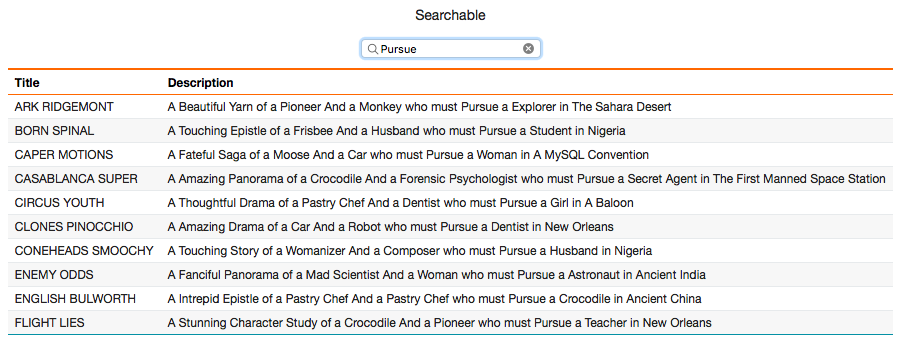
Searchable Fields
The dbr.searchable command enables live, dynamic report retrieval based on user search terms.
select 'dbr.searchable', 'sp_DBR_search_data', 'Filter text', 'in_id=id';

select 2 as 'id';
Optional Links
Use show_link to display links only when certain criteria are met.
select 'dbr.report', 'sp_DBR_show_data', 'inID=ID', 'show_link=[Value]>0';

select ID, Name, Value
from mydata;

Download Links
Use the append parameter to initiate direct file downloads in formats like Excel.
select 'dbr.report', 'sp_DBR_data', 'append=&export=xlsx';
select 'Placeholder';
Buttons as POST Calls
Use 'use_post' to send large datasets or sensitive information via an HTTP POST request. You can also specify a post_callback function to process the JSON response.
select 'dbr.javascript', 'function post_callback_function(data) { /* Handle JSON */ }';

select 'dbr.button', 'Send as POST';
select 'dbr.report', 'sp_DBR_receive_POST', 'dyndiv[]', 'in_long_data=data', 'use_post';

select id, data from large_data;