Form Extension
The form extension enables the creation of multilingual custom forms in the style of questionnaires. Upon submission, the form data is passed to a linked myDBR report, which receives the user-entered values as parameters via an HTTP POST request.
Commands
Syntax
select 'dbr.form', 'command', options..
Syntax Tips
Supported commands:
-
'start', 'form_name'
Starts the form. This must be the first command in the form definition. -
'end'
Marks the end of the form. This must be the last command in the form definition. -
'section.start'[.no_highlight]
Starts a logical section within the form. -
'section.end'
Ends a logical section within the form. -
'radio', 'id', 'title' [, default_selected_id]
Creates a radio button list from the subsequent result set. -
'select', 'id', 'title' [null | 'plain' | 'required' [, default_selected_id]]
Creates a select list from the subsequent result set. The 'plain' option generates only the select list. The 'required' option can be used when the select list follows a checkbox or radio button; the selection becomes mandatory if the corresponding parent element is selected. -
'text', 'id', 'title' [, length, [null | 'required' [, default_text [, placeholder]]]]
Creates an input field. The 'required' option makes the field mandatory when it follows a selected checkbox or radio button. -
'date', 'id', 'title' [, length, [null | 'required' [, default_date]]]
Creates a date input field. The 'required' option makes the field mandatory. -
'textarea', 'id', 'title' [null | 'required' [, default_text [, placeholder]]]
Creates a multiline text area. -
'table', null, 'title', 'col1', 'col2', 'col3'..
Creates a table from the subsequent result set. The columns are defined by the provided arguments. The default value can be set using the third column in the result set. -
'checkbox', number_of_columns, title
Creates a series of checkboxes from the subsequent result set, organized into the specified number of columns. Checked status can be set via the third column in the result set (1=checked). -
'json' [, parameter_name]
Configures the form to use JSON for submission instead of individual fields. Place this command betweendbr.reportand the form start. The default parameter name isinJSON. -
'submit', title
Creates a submit button. -
'html', html_code
Allows the insertion of custom HTML into the form.
Form Components
The Form extension requires a CSS file and a JavaScript file located in the extensions/form directory. The CSS file provides custom styling, while the JavaScript file handles multilingual features and form state. Specifically, the JS file preserves user input during language changes and manages the 'required' status of dependent fields.
A form report typically consists of:
- An HTML
<form>tag with a linked report for handling submission. - Optional language selection for multilingual forms.
- Sections for grouping form elements into logical blocks.
- Form elements (text fields, checkboxes, radio buttons, etc.) within these sections.
Form Definition with Linked Reports
A form is defined by a linked report that handles submission and the command that initializes the form tag:
select 'dbr.report', 'sp_DBR_form_submit', '[form_action]', concat('append=&i=0', f_lang_append(GET_lang)), 'plain_URL=1';

select 'dbr.form', 'start', 'cr_form';
select '' as 'form_action';
The select 'dbr.form', 'start', 'cr_form'; command initializes the form with the ID cr_form.
The append parameter allows for the submission of empty forms and optionally includes the current language parameter in the URL. The plain_URL option ensures that only the URL is generated for the form action, rather than an <a> tag.
The optional f_lang_append function validates the language parameter:
create function f_lang_append(lang char(5))
returns varchar(20)
begin

if (lang in ('en_US', 'de_DE', 'el_GR', 'es_ES', 'fi_FI', 'it_IT', 'nl_NL', 'sv_SE')) then
  return concat('&lang=', lang);
end if;

return '';

end
Multilingual Support
Custom elements can be added to a form using the dbr.html command. A select element named lang is specifically designated for creating multilingual reports. myDBR manages language changes through predefined translations while preserving existing user input.
select 'dbr.html', '<div class="lang-choice">';
select 'dbr.form', 'select', 'lang', null, 'plain';

select 'fi_FI', 'Suomi'
union
select 'en_US', 'English'
union
select 'sv_SE', 'Svenska'
union
select 'el_GR', 'Ελληνικά'
union
select 'de_DE', 'Deutsche'
union
select 'es_ES', 'Española'
union
select 'it_IT', 'Italiana'
union
select 'nl_NL', 'Nederlandse';
The command select 'dbr.form', 'select', 'lang' generates a selection list where the first value from the result set is the option value and the second is the display name. The plain option generates only the <select> tag, omitting the standard form element wrapping.
Defining Sections
Sections are initiated using either section.start or section.start.no_highlight. The no_highlight option disables the CSS hover effect for that section. A 'dummy' result set following the command is required to trigger its functionality.
select 'dbr.form', 'section.start.no_highlight';
select 'dummy';
Sections are closed using the section.end option:
select 'dbr.form', 'section.end';
select 'dummy';
You can combine these commands by separating them with a comma:
select 'dbr.form', 'section.end,section.start';
select 'dummy';
Form Elements: Radio Buttons
Radio buttons allow for a single choice among multiple options. In this example, the parameter name is how_long_used, which translates to the linked report parameter in_how_long_used.
select 'dbr.form', 'radio', 'how_long_used', 'How long have you used myDBR?';

select 0, 'Have not yet used it'
union
select 1, '0 - 1 years'
union
select 2, '1 - 5 years'
union
select 3, '5 - 10 years'
union
select 4, 'Over 10 years';
This configuration produces the following element:

Additional fields can be associated with radio button selections using dbr.record. This is useful for requesting clarification or choosing a value from a dependent list based on the user's selection.
select 'dbr.record', 'begin', 'other_products';

select 'dbr.form', 'text', 'other_product', null, 30, 'required';
select 'dummy';

select 'dbr.record', 'end';

select 'dbr.record', 'begin', 'other_products_choose';

select 'dbr.form', 'select', 'other_products_chosen', null, 'required';

select null, ''
union
select 'prod_a', 'Product A'
union
select 'prod_b', 'Product B';

select 'dbr.record', 'end';

select 'dbr.form', 'radio', 'how_long_used', 'Have you used other products?';

select 0, 'No', null
union
select 1, 'Choose, what', ''
union
select 2, 'Other, what', '';
The required attribute ensures the field is mandatory only when the corresponding radio button is selected. Note that select and radio elements do not require a 'dummy' selection as they utilize the subsequent result set directly.

Form Elements: Select Lists
Select lists are defined as follows:
select 'dbr.form', 'select', 'database', 'Primary database';

select null, ''
union
select 'mysql', 'MySQL'
union
select 'mariadb', 'MariaDB'
union
select 'mssql', 'Microsoft SQL Server'

Form Elements: Tables
A table element allows for multiple parameters to be rated across a shared set of values:
select 'dbr.form', 'table', null, 'Overall evaluation', 'Excellent', 'Good', 'Fairly good', 'Satisfactory', 'Poor';

select 'overall_evaluation', 'Overall evaluation'
union
select 'product_quality', 'Product quality'
union
select 'documentation', 'Documentation'
union
select 'support', 'Support'
union
select 'value_for_money', 'Value for money';

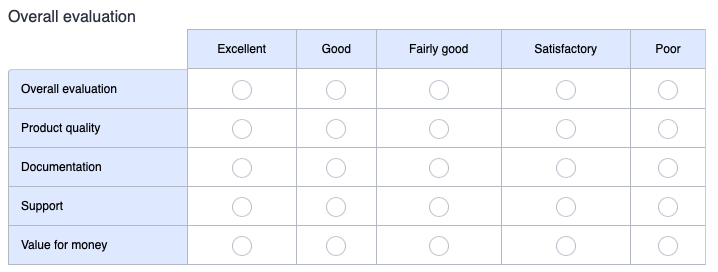
The values for these parameters (e.g., overall_evaluation) will range from 5 to 1 (e.g., Excellent = 5, Poor = 1).
Form Elements: Checkboxes
Checkboxes can be organized into columns for better layout:
select 'dbr.form', 'checkbox', 3, ' Authentication';

select 'google', 'Google'
union
select 'ad', 'Active Directory'
union
select 'custom_login', 'Custom login'
union
select '2fa', 'Two-factor authentication';
Similar to radio buttons, checkboxes can accommodate dependent elements like dropdowns or text inputs.
Form Elements: Text and Textarea
The textarea command is used for multiline input, while text is for single-line entries.
select 'dbr.form', 'textarea', 'comment', 'Comments / improvement ideas';

select 'dbr.form', 'text', 'contact_info', 'Contact info', 50;
select 'dummy';

Form Elements: Date
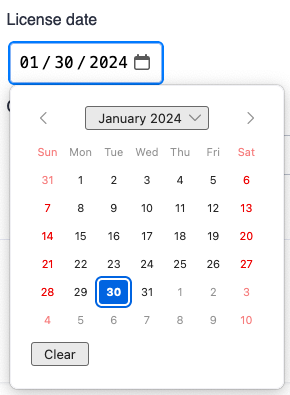
Date fields leverage the browser's native datepicker:
select 'dbr.form', 'date', 'license_date', 'License date', 10, 'required';
Mandatory Fields
The Form extension utilizes the standard HTML required attribute. Fields used as parameters in the submission report derive their mandatory status from the parameter's 'Optional' setting in myDBR. If 'Optional' is unchecked, the required attribute is applied to the corresponding form field.
Submission Handling
The submission report (e.g., sp_DBR_form_submit) retrieves data via the form's POST request. After processing the input, the report should perform a redirect to a confirmation page. This prevents accidental duplicate submissions if the user refreshes their browser.
Sample Implementation
CREATE PROCEDURE `sp_DBR_feedback_doc`(
GET_lang varchar(30)
)
BEGIN

/* Exclude the default title */
select 'dbr.title', '';

/*
  Configure submission:
  - &i=0 ensures the report runs even if the form is empty
  - f_lang_append(GET_lang) persists the language parameter
  - plain_URL sets the form action URL
*/

select 'dbr.report', 'sp_DBR_feedback_doc_submit', '[form_action]', concat('append=&i=0', f_lang_append(GET_lang)), 'plain_URL=1';

/* Initialize form */
select 'dbr.form', 'start', 'cr_form';
select '' as 'form_action';

/* Logo and language selection section */
select 'dbr.form', 'section.start.no_highlight';
select 'dummy';

select 'dbr.html', '<div style="text-align:center"><img src="user/images/myDBR.svg" style="width:400px"></div>';

/* Centered language selector */
select 'dbr.html', '<div class="lang-choice" style="text-align:center">';
select 'dbr.form', 'select', 'lang', null, 'plain';

select 'fi_FI', 'Suomi'
union
select 'en_US', 'English'
union
select 'sv_SE', 'Svenska'
union
select 'el_GR', 'Greek'
union
select 'de_DE', 'German'
union
select 'es_ES', 'Spanish'
union
select 'nl_NL', 'Dutch';

select 'dbr.html', '</div>';

select 'dbr.form', 'section.end,section.start';
select 'dummy';

/* Define dependent select list */
select 'dbr.record', 'begin', 'other_products_choose';
  select 'dbr.form', 'select', 'other_products_chosen', null, 'required';
  select null, ''
  union
  select 'prod_a', 'Product A'
  union
  select 'prod_b', 'Product B';
select 'dbr.record', 'end';

/* Radio buttons with dependent fields */
select 'dbr.form', 'radio', 'used_another_product', 'Have you used other products?';

select 0, 'No', null
union
select 1, 'Choose, what', ''
union
select 2, 'Other, what', null;

select 'dbr.form', 'section.end,section.start';

/* Database selection */
select 'dbr.form', 'select', 'database', 'Primary database';

select null, ''
union
select 'mysql', 'MySQL'
union
select 'mariadb', 'MariaDB'
union
select 'mssql', 'Microsoft SQL Server'

select 'dbr.form', 'section.end,section.start';

/* Evaluation table */
select 'dbr.form', 'table', null, 'Overall evaluation', 'Excellent', 'Good', 'Fairly good', 'Satisfactory', 'Poor';

select 'overall_evaluation', 'Overall evaluation'
union
select 'product_quality', 'Product quality'
union
select 'documentation', 'Documentation'
union
select 'support', 'Support'
union
select 'value_for_money', 'Value for money';

select 'dbr.form', 'section.end,section.start';

/* Multicolumn checkboxes */
select 'dbr.form', 'checkbox', 3, ' Authentication';

select 'google', 'Google'
union
select 'ad', 'Active Directory'
union
select 'custom_login', 'Custom login'
union
select '2fa', 'Two-factor authentication';

select 'dbr.form', 'section.end,section.start';
select 'dummy';

/* Comments textarea */
select 'dbr.form', 'textarea', 'comment', 'Comments / improvement ideas';

/* Contact info field */
select 'dbr.form', 'text', 'contact_info', 'Contact info', 50;
select 'dummy';

select 'dbr.form', 'section.end';

/* Submit button */
select 'dbr.form', 'submit', 'Submit';
select 'dbr.form', 'end';
select 'dummy';

END
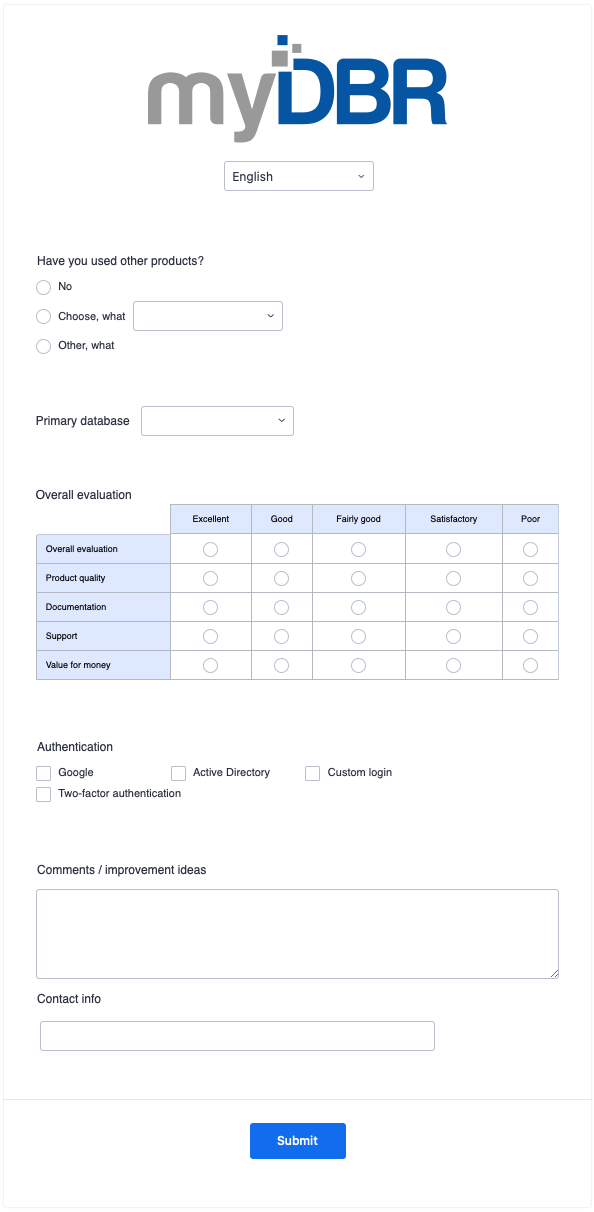
This produces the following feedback form:
create procedure sp_DBR_feedback_doc_submit(
in_lang varchar(10),
in_used_another_product int,
in_other_products_chosen varchar(20),
in_database varchar(20),
in_overall_evaluation tinyint,
in_product_quality tinyint,
in_documentation tinyint,
in_support tinyint,
in_value_for_money tinyint,
in_google int,
in_ad int,
in_custom_login int,
in_2fa int,
in_comment text,
in_contact_info text
)
begin

insert into doc_feedback2 (
  language,
  used_another_product,
  other_products_chosen,
  db,
  overall_evaluation,
  product_quality,
  documentation,
  support,
  value_for_money,
  google,
  ad,
  custom_login,
  auth2fa,
  comment,
  contact_info
)
values (
  in_lang,
  in_used_another_product,
  in_other_products_chosen,
  in_database,
  in_overall_evaluation,
  in_product_quality,
  in_documentation,
  in_support,
  in_value_for_money,
  in_google,
  in_ad,
  in_custom_login,
  in_2fa,
  in_comment,
  in_contact_info
);

select 'dbr.redirect', 'sp_DBR_questionnaire_thank_you', concat('append=&m=0&hdr=0', f_lang_append(in_lang));
select 'dummy';

end
Fields not marked as 'required' are treated as optional. myDBR enforces mandatory selection for the other_products_chosen list only when the associated used_another_product radio button is selected.
JSON Submission
Forms can be configured to submit data as a JSON object rather than as individual parameters.
select 'dbr.report', 'sp_DBR_form_json_submit', '[form_action]';

/* Create a form with id cr_form */
select 'dbr.form', 'json';
select 'dbr.form', 'start', 'my_form';
select 'form_action';

select 'dbr.form', 'select', 'lang', null, 'plain';

select 'fi_FI', 'Suomi'
union
select 'en_US', 'English'
union
select 'sv_SE', 'Svenska'
union
select 'el_GR', 'Ελληνικά'
union
select 'de_DE', 'Deutsch'
union
select 'es_ES', 'Española'
union
select 'nl_NL', 'Nederlands';

select 'dbr.form', 'select', 'products_chosen', null, 'required';
select "prod'a", 'Product A'
union
select 'prod_b', 'Product B';

select 'dbr.form', 'submit', 'Submit';
select 'dbr.form', 'end';
select 'dummy';
The submission report requires only a single parameter to receive the JSON data:
create procedure sp_DBR_form_json_submit(
inJSON text
)
begin
...
end
When building a form using a custom template, use the following attributes:
data-json="1": Instructs myDBR to submit the form as JSON.data-jsonparam="inJSON": (Optional) Specifies a custom parameter name for the JSON data.data-formext="1": Enables the use ofsessionStorageto preserve user input across sessions.
<form action="" method="post" id="cr_form" data-json="1" data-jsonparam="inJSON" data-formext="1" accept-charset="utf-8">